MeetAssist is an AI interview assistant that listens to the interviewer's questions and generates real-time answer suggestions. It works in Zoom too — but only if you join the call through Chrome, not the desktop app.
Key point for Zoom: the Zoom desktop app is not supported. You need to join Zoom via Chrome — that's exactly what we'll show you below, step by step.
Contents
How to join Zoom in your browserStep-by-step guidePhone Mode — clean screen while sharingAnalyze Any Tab for technical interviewsCustom Prompts and uploading your resumeFAQ
How to join Zoom in Chrome
By default, Zoom tries to open its desktop app. We need to stay in Chrome — here are two ways to do that.
Option 1 — via the meeting link
Click the Zoom meeting link from your email or calendar. A page will appear suggesting you open the app — don't click "Open". Look for the "Join from your browser" link at the bottom and click it.
Click "Join from browser" to stay in Chrome
Note: the "Join from your browser" link only appears if the meeting host has enabled it in their Zoom settings. If it's missing — ask your interviewer to turn it on: Zoom → Settings → Meeting → "Show a 'Join from your browser' link". Or use Option 2.
Option 2 — direct link to the web client
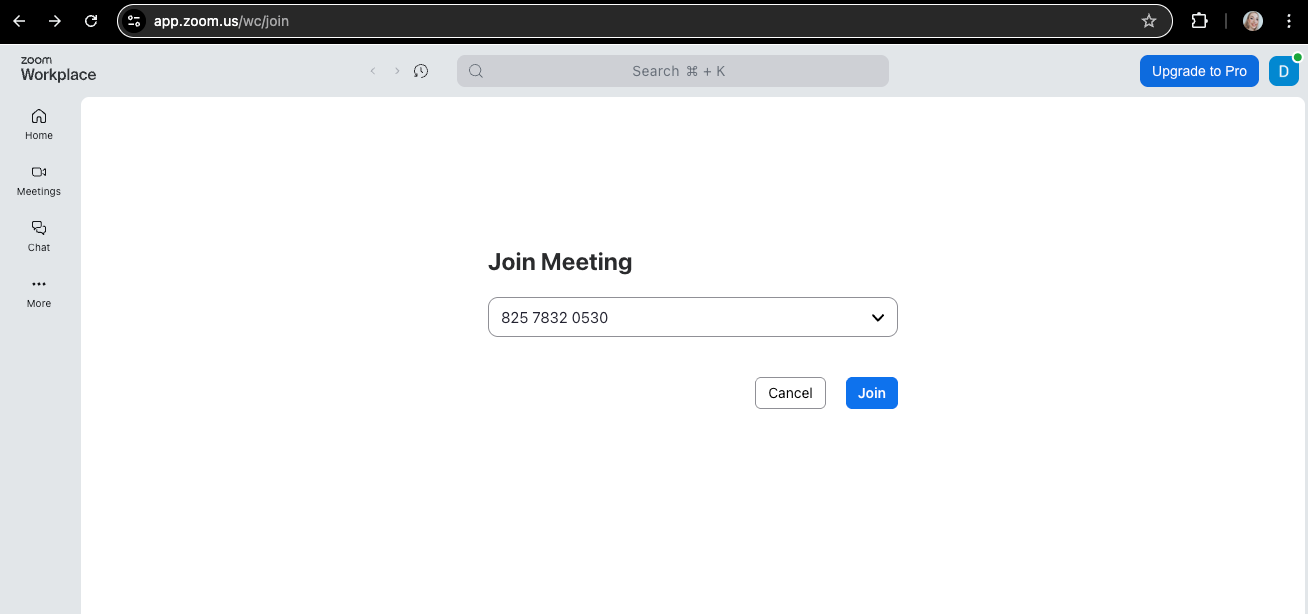
Open app.zoom.us/wc/join in Chrome, enter the Meeting ID and password. This always works — regardless of the host's settings.
Enter the Meeting ID and click "Join"
Step-by-step guide
1 Install the MeetAssist extension
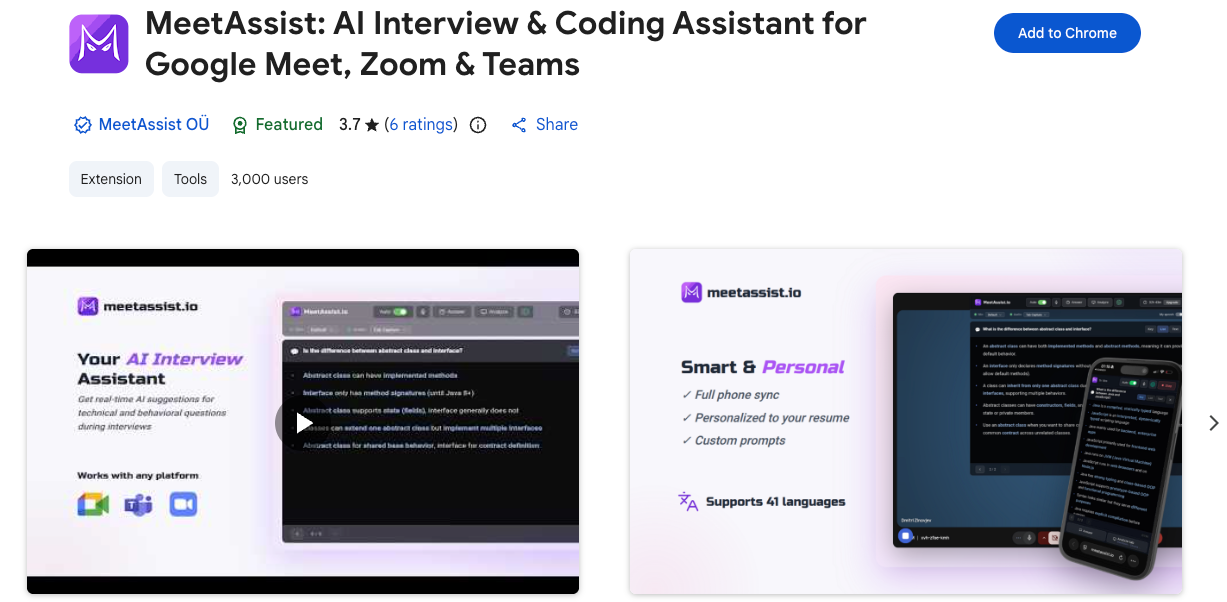
Open MeetAssist in the Chrome Web Store, click "Add to Chrome". After installing, click the extension icon and sign in with your Google account. You only need to do this once.
MeetAssist in the Chrome Web Store — click "Add to Chrome"
2 Join Zoom via browser using one of the options above
Click the meeting link → "Join from your browser", or go to app.zoom.us/wc/join. Enter your name.
3 Allow microphone access and click "Join Audio by Computer"
Chrome will ask for microphone permission — click Allow. Then click "Join Audio by Computer" in Zoom to activate audio.
4 Open MeetAssist and click Start
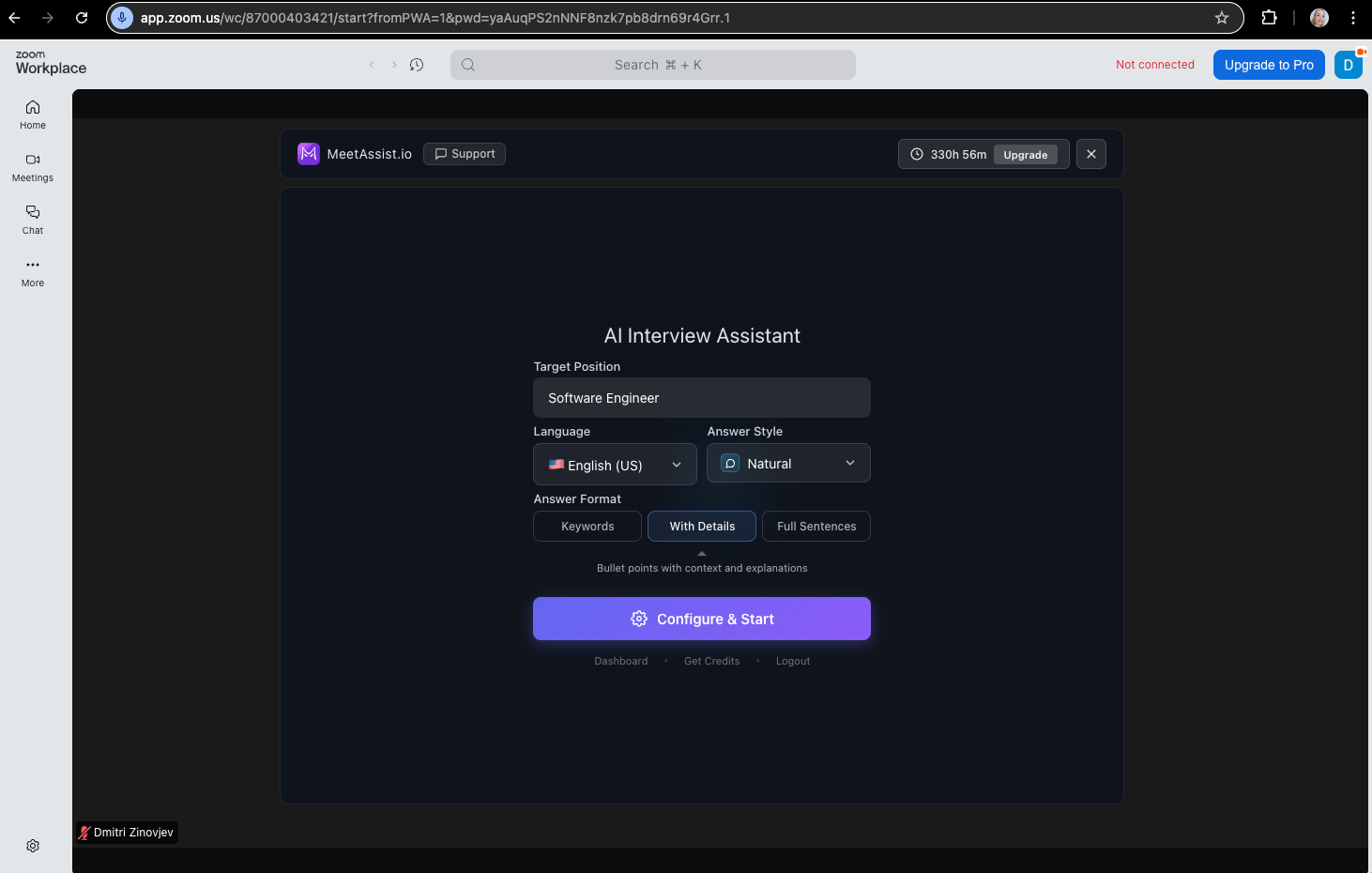
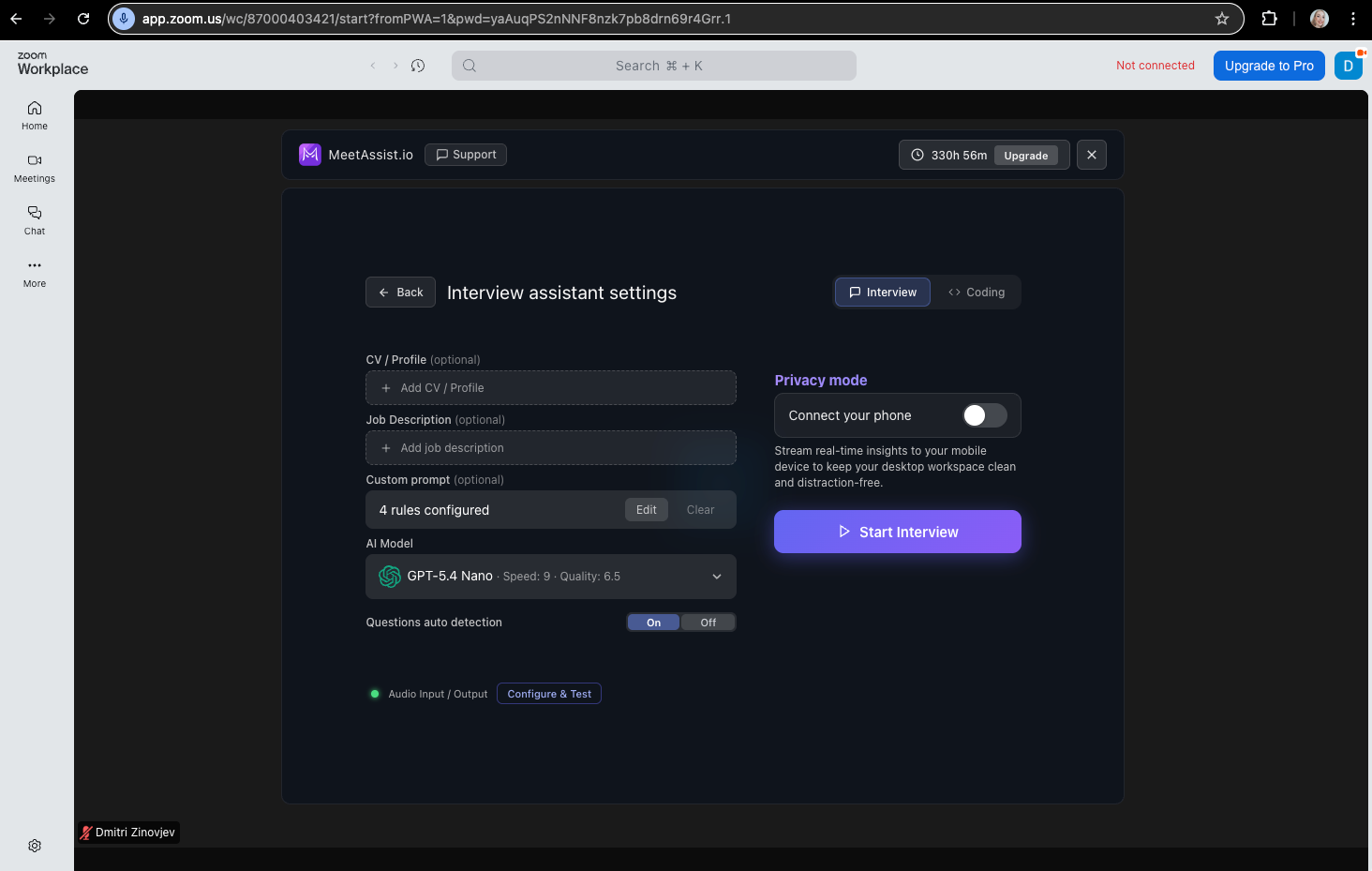
Click the MeetAssist icon in the Chrome toolbar — a side panel will open. Set your target role, choose a language and answer format, then click "Configure & Start". MeetAssist will start listening to the interview.
5 Get real-time AI suggestions
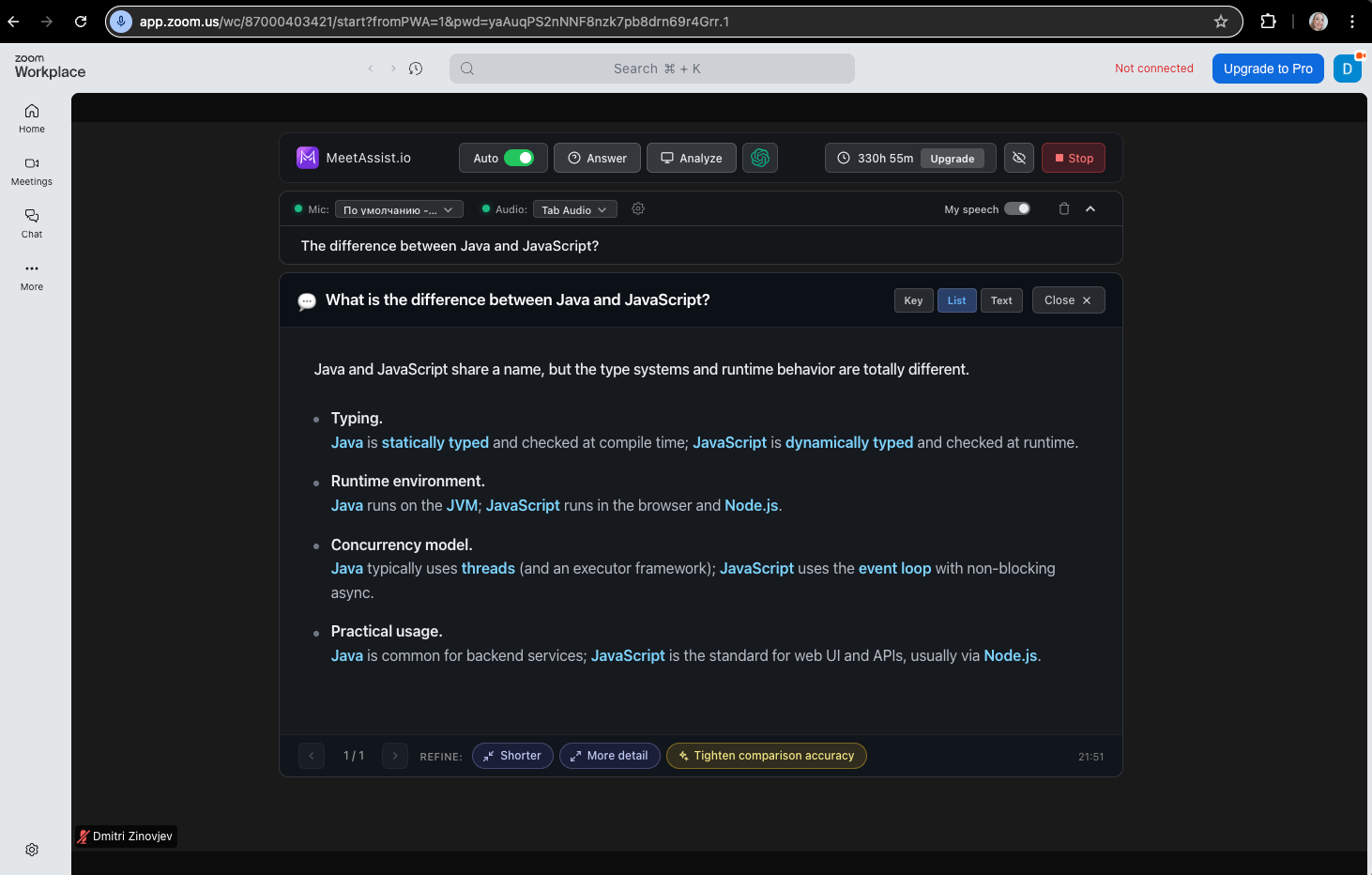
When the interviewer asks a question, MeetAssist automatically picks it up and shows answer options within a few seconds.
AI suggestions appear automatically in response to the interviewer's questions
Phone Mode — clean screen while sharing
Technical Zoom interviews often require you to share your screen so the interviewer can see you write code. If the MeetAssist panel is open at that point — they'll see it.
The solution is Phone Mode. It moves all suggestions to your phone, keeping your computer screen completely clean.
How to enable Phone Mode
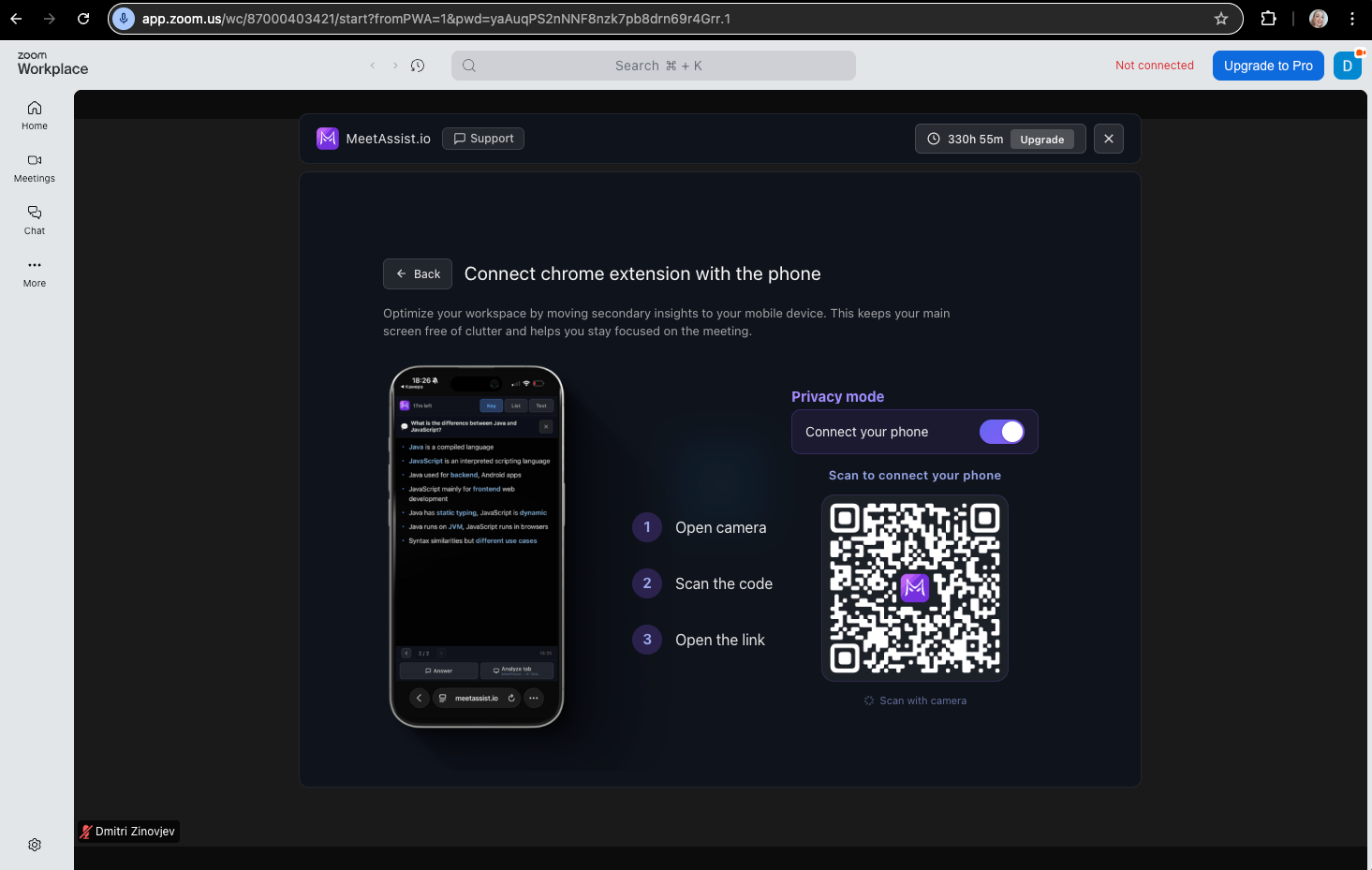
In the MeetAssist extension, find the Phone Mode section and click the connect button
Scan the QR code with your phone
Your phone connects to the extension — transcriptions and AI suggestions will start coming to it in real time
MeetAssist will disappear completely from your computer screen
Scan the QR code — suggestions move to your phone, your computer screen stays cleanAfter that, you can freely share your screen. The interviewer will only see your code and work environment — nothing else.
Analyze Any Tab — AI help on coding problems
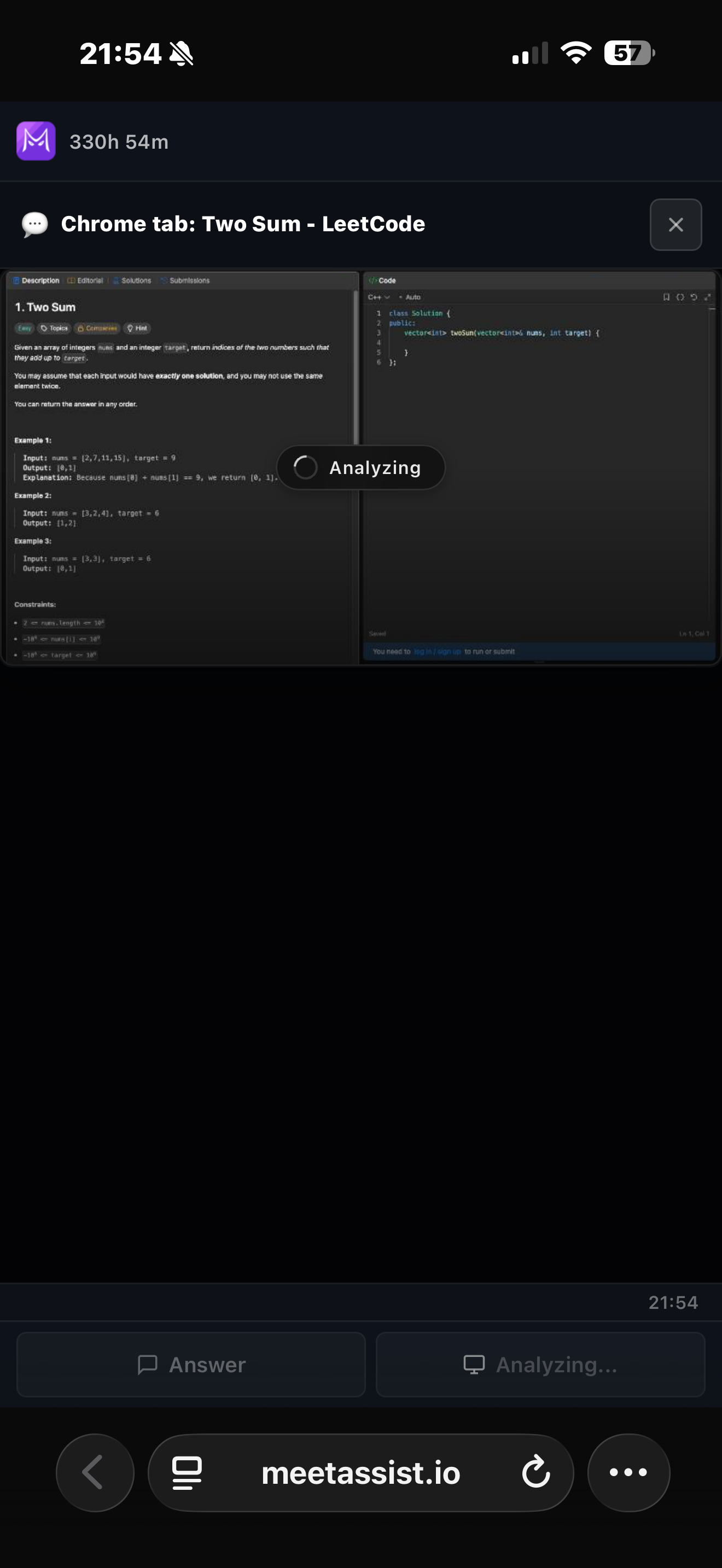
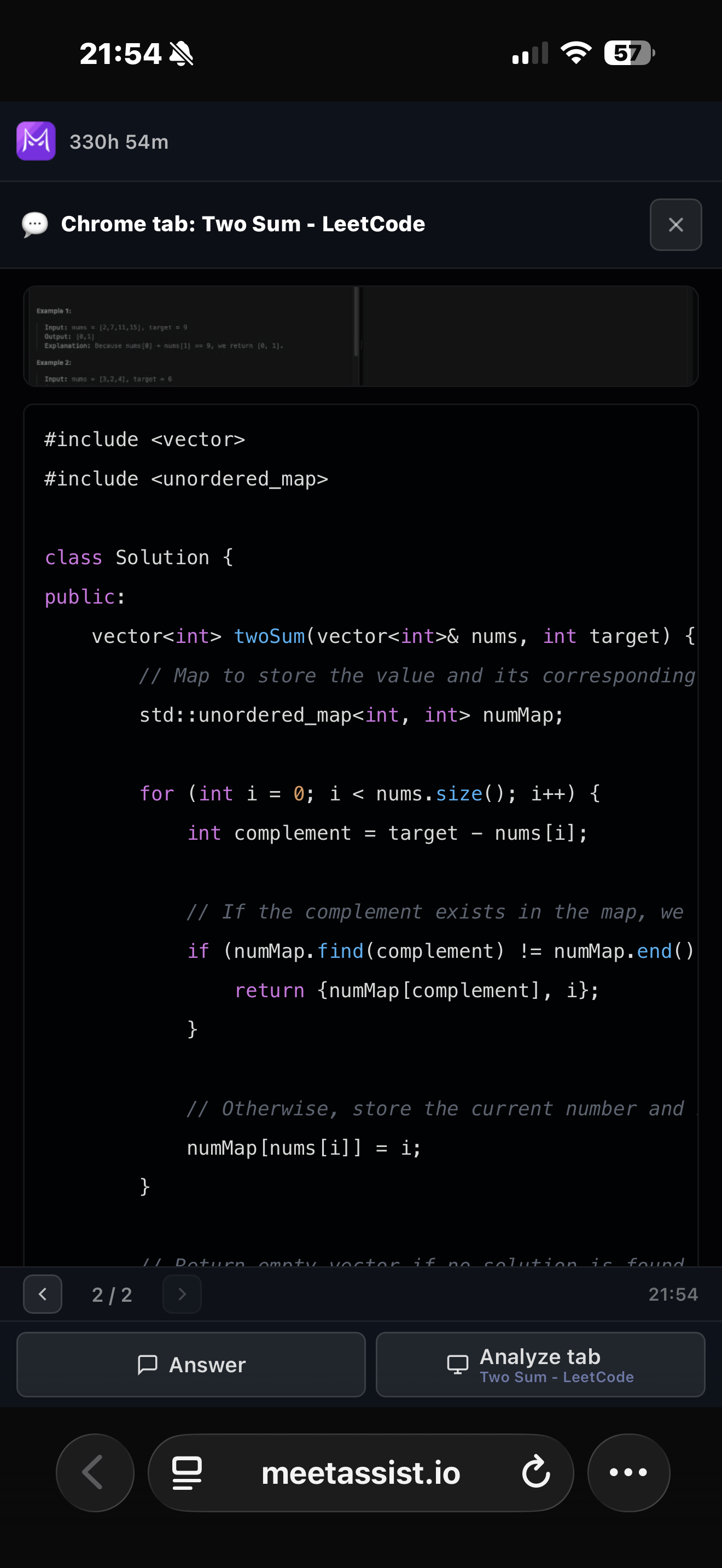
Zoom is often used for technical interviews with coding challenges. MeetAssist can analyze the content of any open Chrome tab and send the solution straight to your phone.
How it works
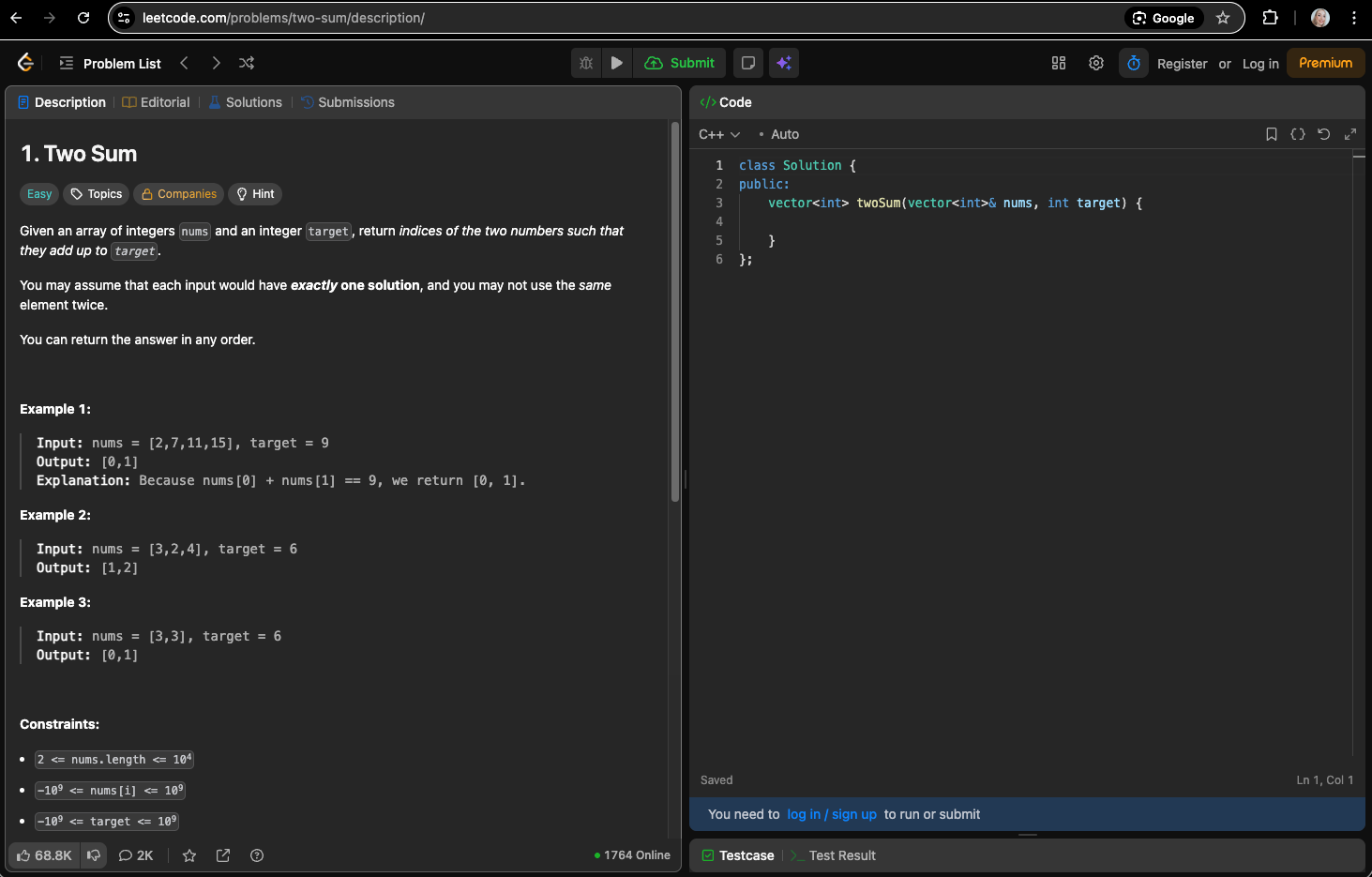
The interviewer gives you a problem — on LeetCode, in a shared document, or anywhere else
Open the problem in a separate Chrome tab
In MeetAssist, click "Analyze Tab" — the extension will capture the tab's content
AI generates a step-by-step solution with algorithm explanation and complexity analysis
The solution appears on your phone (in Phone Mode) or in the extension panel
Custom Prompts and uploading your resume
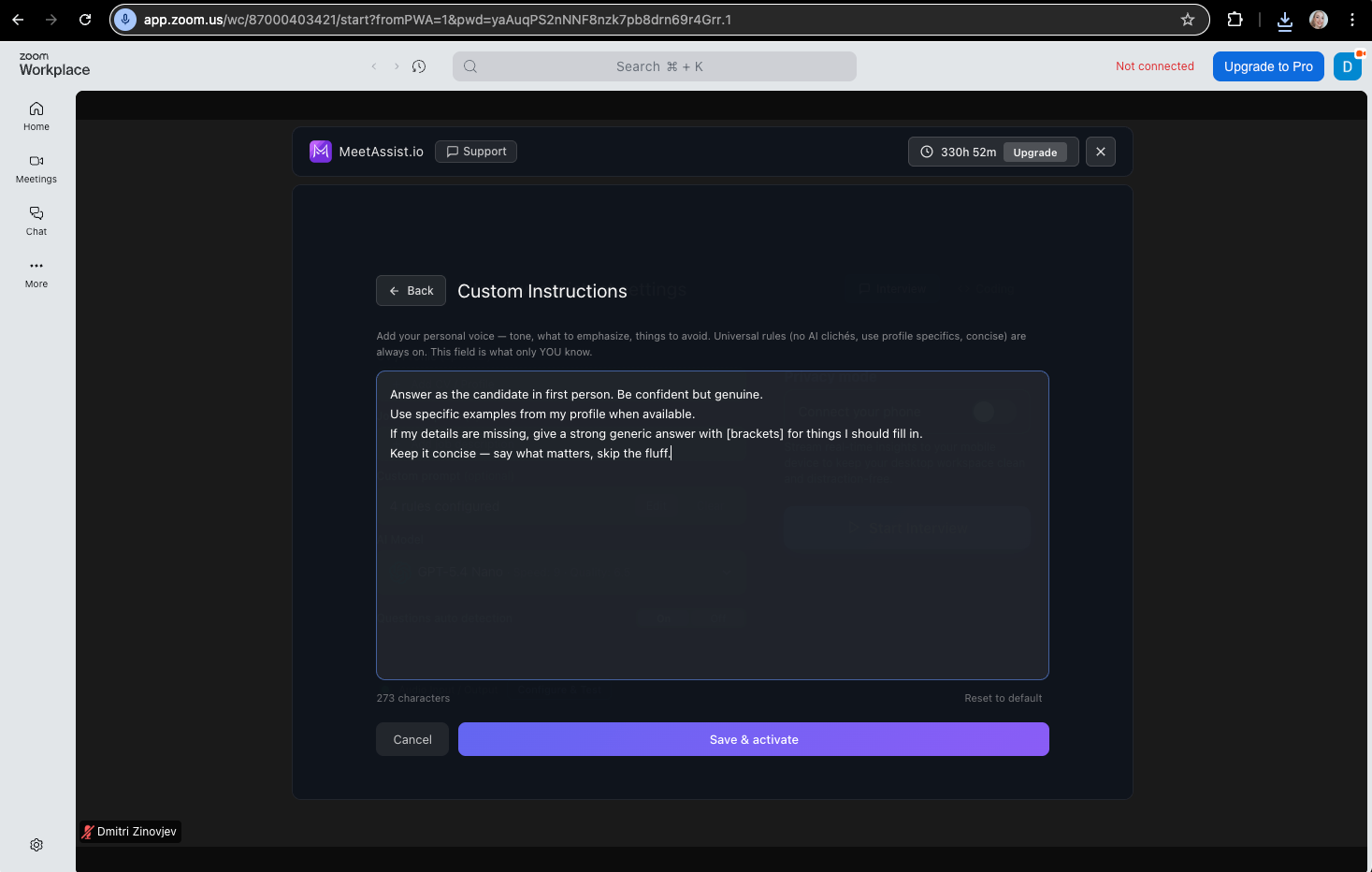
In the Custom Prompts section, you can write your own instructions for the AI. For example:
"Answer in first person, confidently but without sounding stiff"
"Use specific examples from my experience where available"
"Keep answers short — no more than 3 sentences"
"For behavioral questions, use the STAR structure"
Custom Instructions — set up AI to match your answer style and click "Save & activate"
FAQ
Why doesn't MeetAssist work in the Zoom desktop app?
MeetAssist is a Chrome browser extension. It captures audio from browser tabs only — not from separate desktop applications. That's why you need to open Zoom in Chrome, not through the desktop app.
What if there's no "Join from your browser" button?
The host needs to enable it: Zoom → Settings → Meeting → "Show a 'Join from your browser' link". Ask your interviewer to do this before the call. Or go directly to app.zoom.us/wc/join — no button needed there.
Will the interviewer see the MeetAssist panel if I share my screen?
If you share your screen without Phone Mode — yes. Turn on Phone Mode: scan the QR code, suggestions go to your phone, and your computer screen becomes completely clean.
Does MeetAssist work for technical coding problems in Zoom?
Yes. The Analyze Any Tab feature captures the content of any Chrome tab (LeetCode, HackerRank, shared doc) and generates a step-by-step solution with complexity analysis — right on your phone in Phone Mode.
Can the interviewer tell I'm using MeetAssist?
No. MeetAssist runs entirely in your browser and doesn't join the meeting as a participant. With Phone Mode on, there's nothing extra on your screen.


 MeetAssist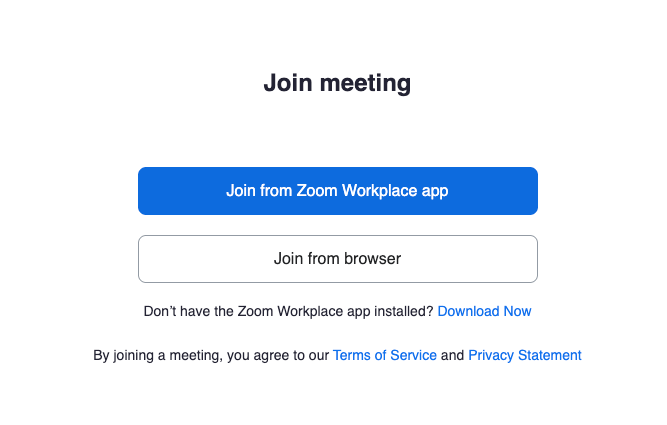
 Or add the Chrome extension