

Requirements
Chrome browser (desktop) + Google Meet web version (meet.google.com). Mobile app is not supported.
1Install the Chrome Extension
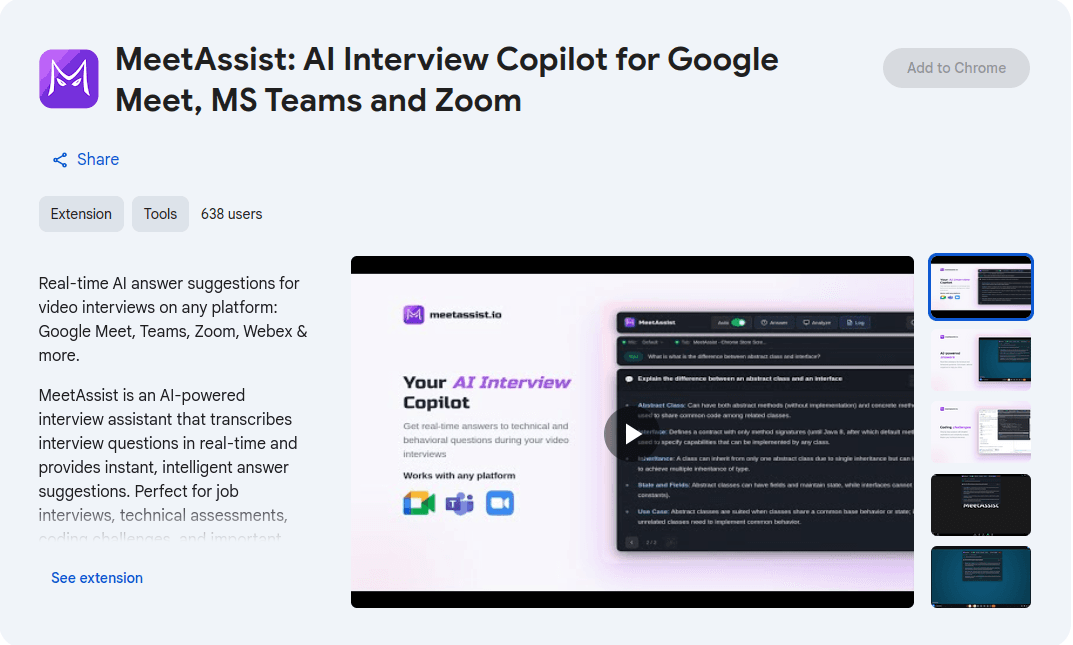
Open the Chrome Web Store listing and click "Add to Chrome".
2Sign in
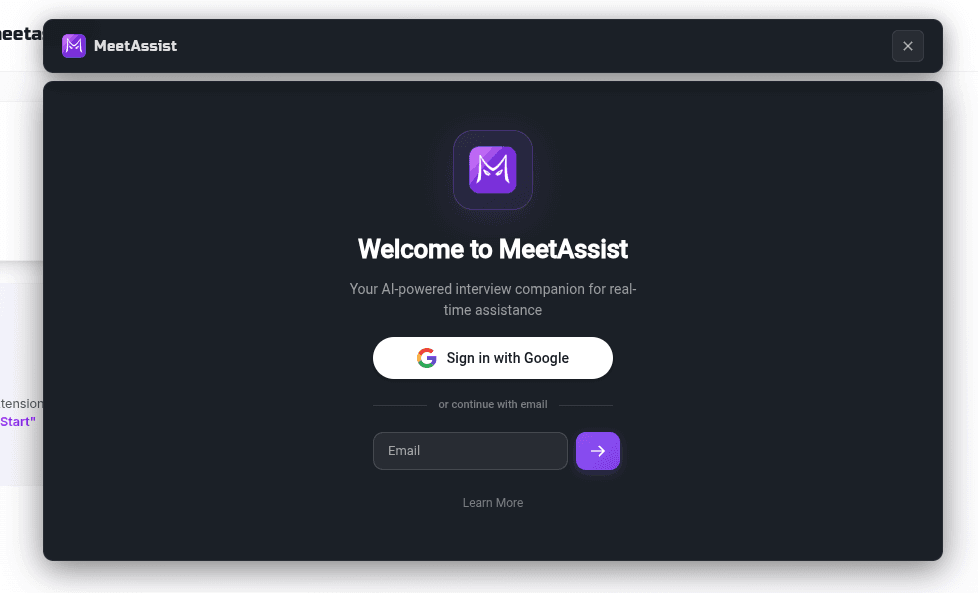
Click the MeetAssist icon in your toolbar and sign in with Google.
3Join your Google Meet call
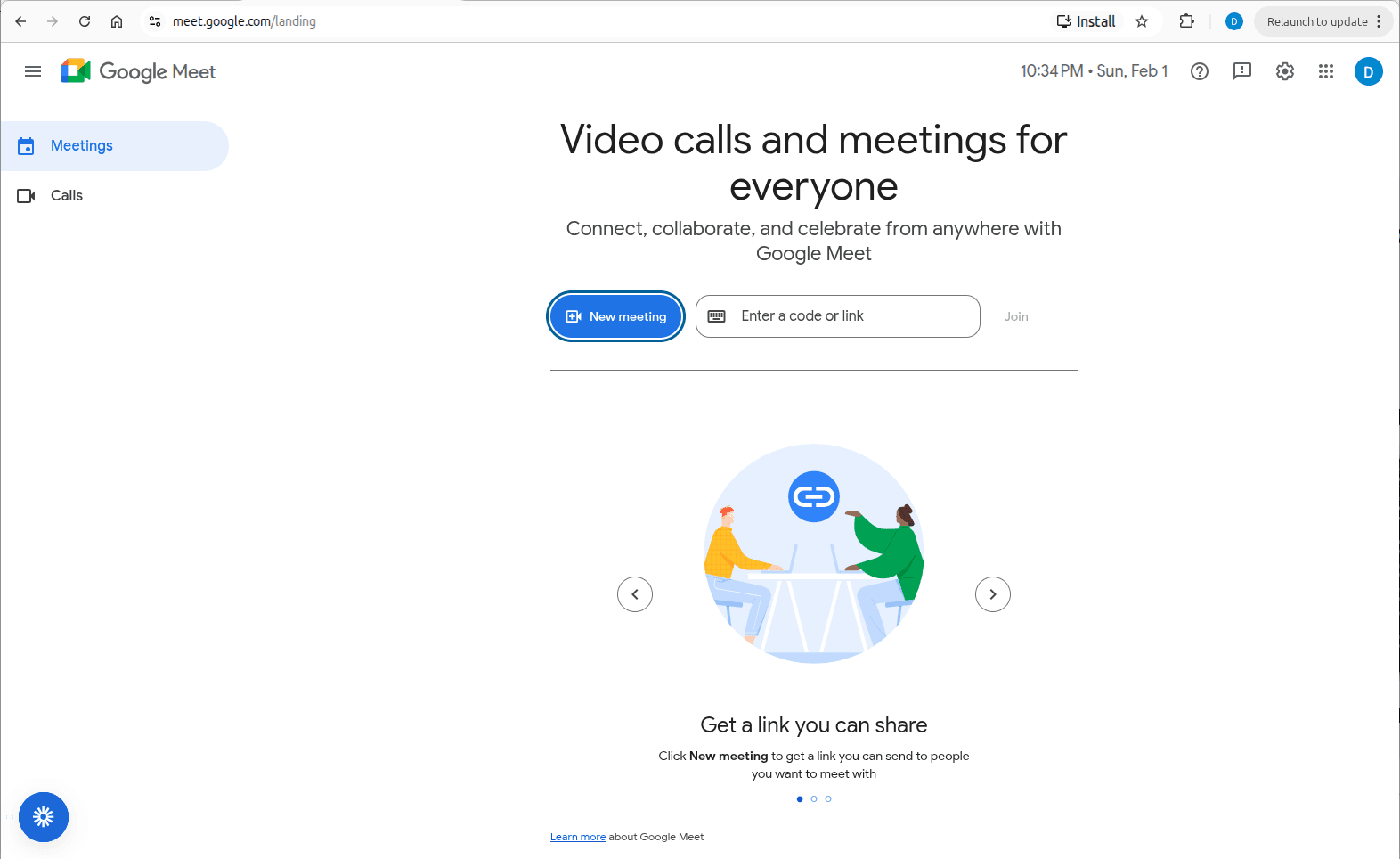
Go to meet.google.com in Chrome and join your interview.
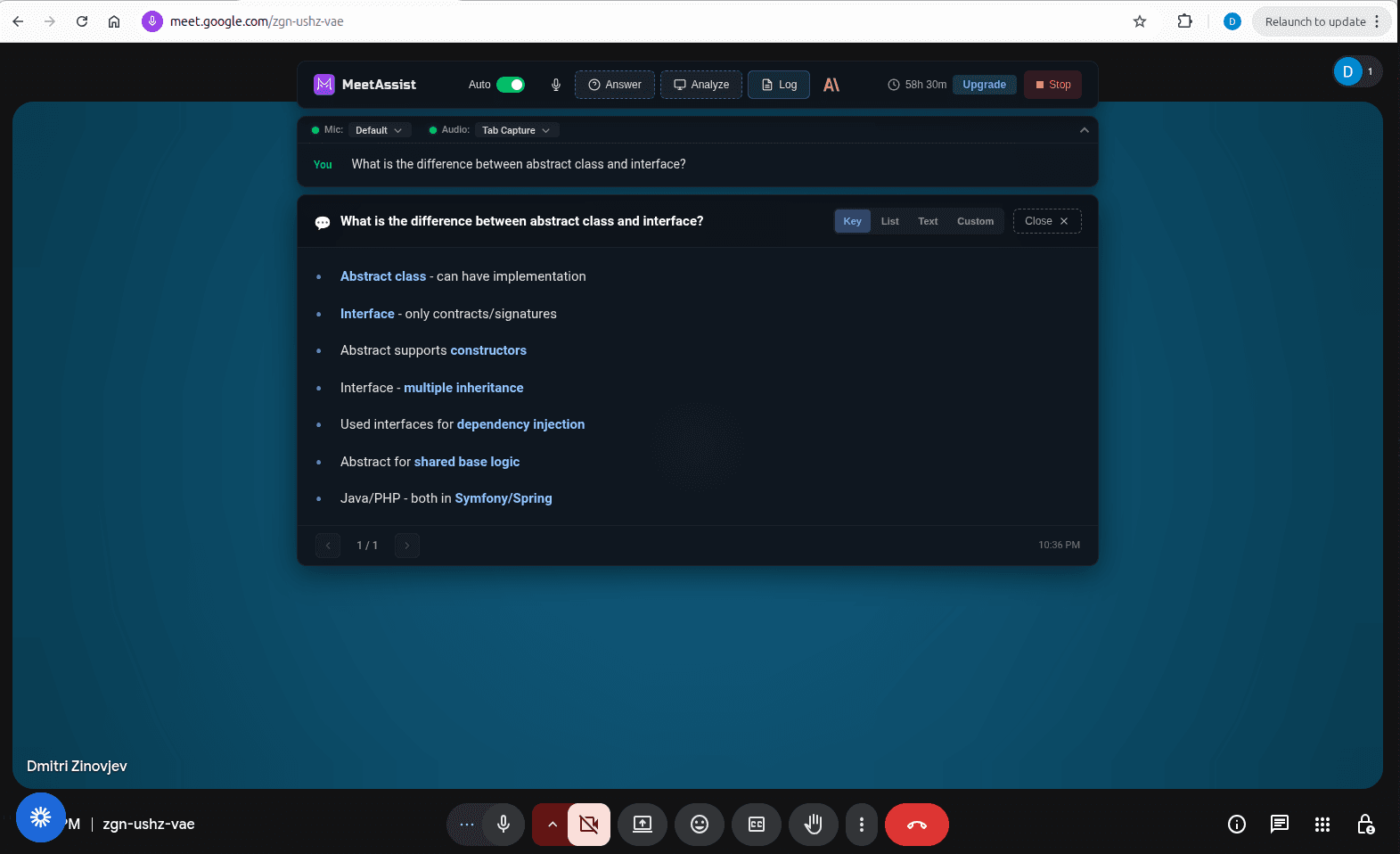
4Open MeetAssist and press Start
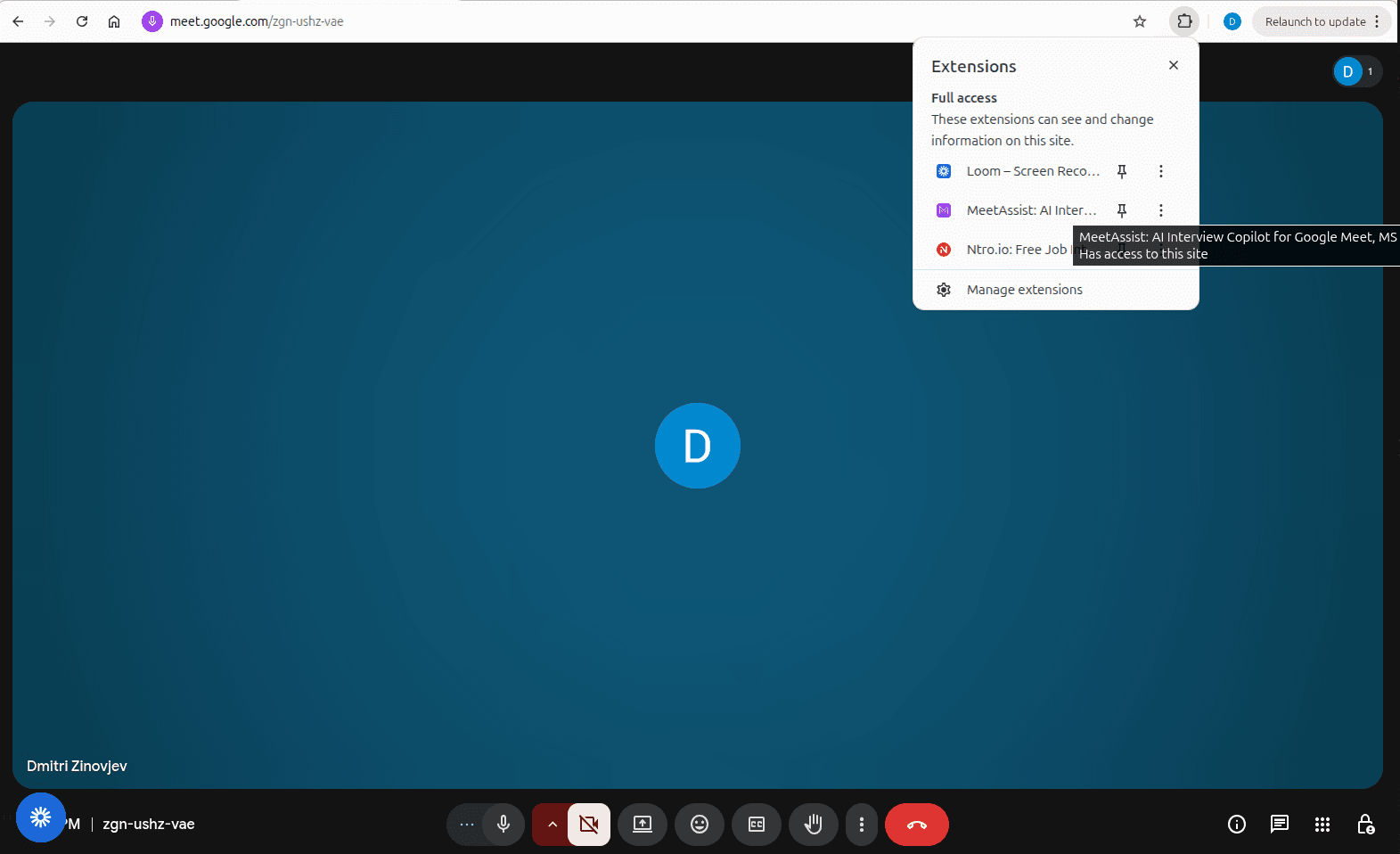
Click the extension icon (puzzle piece) in Chrome, then click MeetAssist. Press Start to begin.
5Get AI suggestions
MeetAssist listens to the call and generates answer suggestions when the interviewer asks a question. Upload your resume beforehand for personalized answers.
Features
Answer Styles
- · Concise — Short, direct answers
- · Detailed — Full explanations
- · STAR Method — Situation, Task, Action, Result
- · Bullet Points — Key points to scan
AI Models
- · GPT-4.1 — Best quality
- · GPT-4.1 Mini — Fast & efficient
- · Claude Sonnet — Excellent reasoning
- · Gemini Pro — Google's latest
Pricing
Free Trial
20 minutes, all features
Pro Pass
3 hours, never expires
Unlimited Month
Unlimited for 30 days
FAQ
Does it work with the Google Meet mobile app?
No. Chrome extensions only work on desktop. Use meet.google.com in Chrome browser.
Can the interviewer see that I'm using it?
No. MeetAssist runs locally as a Chrome extension. Nothing is shared with other call participants.
How does the AI hear the questions?
It captures audio from your browser tab, transcribes it in real-time, and sends only the question text to generate an answer.
What if I run out of free minutes?
You can purchase more time instantly without leaving your interview.
Is my audio recorded or stored?
No. Audio is processed locally. Only short text snippets are sent to generate answers. No audio is stored on our servers.