When it comes to interviews at big companies, the norm is for Microsoft Teams to be used. This is typically where HR screenings and behavioral rounds, and the last interviews with managers happen. You might get asked the same thing: “Can you tell me about your most challenging project,” “How did you deal with a conflict in a teammate,” “why are you looking to leave your job?” and the skill is knowing how to answer without panicking or getting stuck.
MeetAssist is going to hear the questions you're being asked and then offer advice that applies the specific knowledge you've provided to that question in the context of your resume and communication. This guide will show you how to configure MeetAssist to assist with behavioral interview style corporate questions being asked in Teams meetings.
Important: MeetAssist only works in Chrome. Join Teams via the meeting link → "Continue on this browser", or directly at teams.microsoft.com — not through the desktop app.
MeetAssist in the Chrome Web Store - click "Add to Chrome"
2 Join Teams in your browser
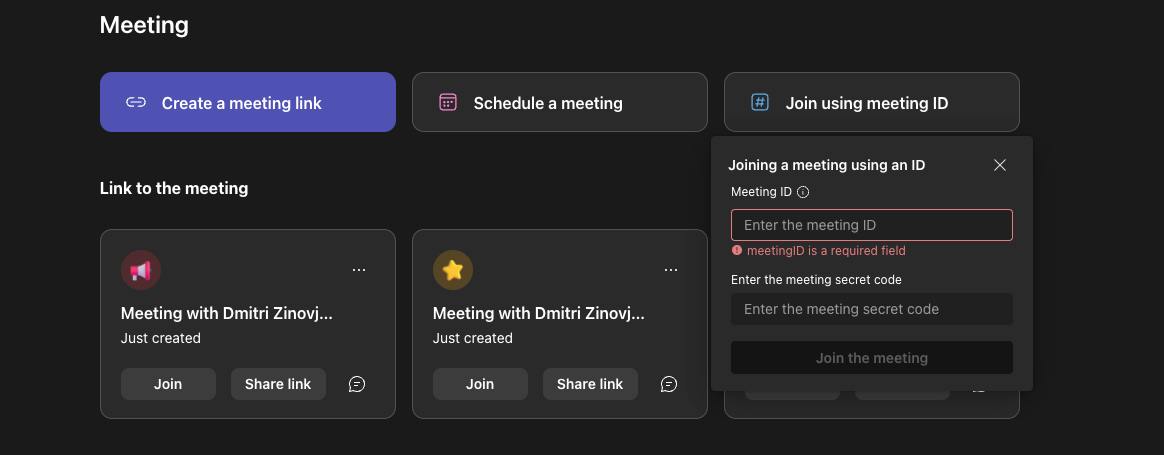
Open teams.live.com in Chrome. Find your interview in the meeting list and click "Join" - or click "Join using meeting ID" and enter the ID if you don't have a link.
Open teams.live.com in Chrome and click "Join" next to your meeting
3 Choose a format and start MeetAssist
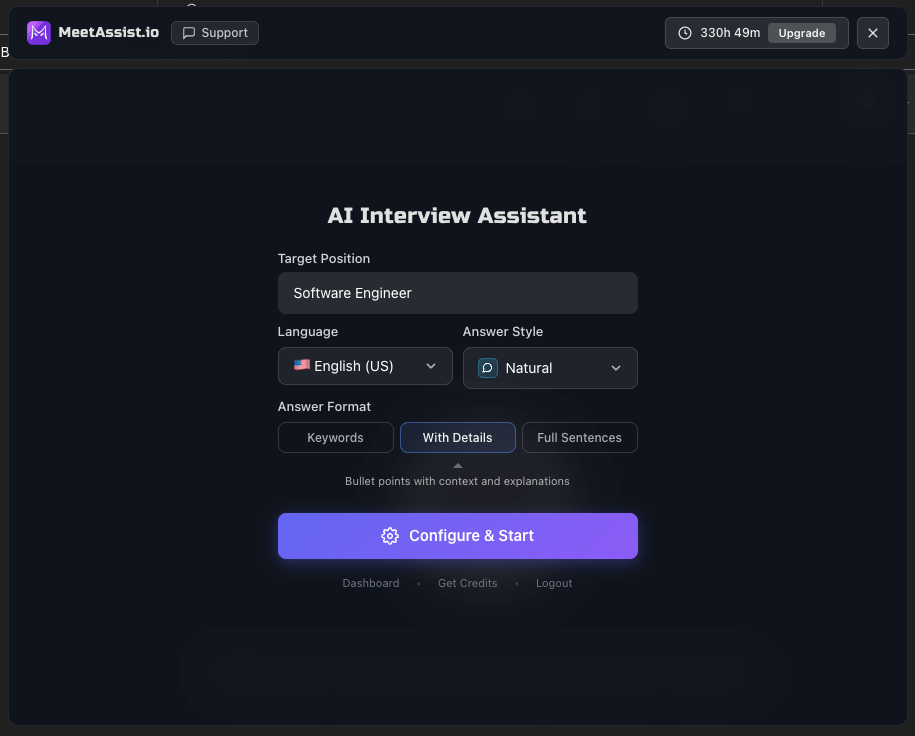
Click the MeetAssist icon in the Chrome toolbar. Set your target role, choose a language and answer format, then click "Configure & Start". More on formats in the section below.
Set your role, choose a format, and click "Configure & Start"
4 Upload your resume for personalized answers
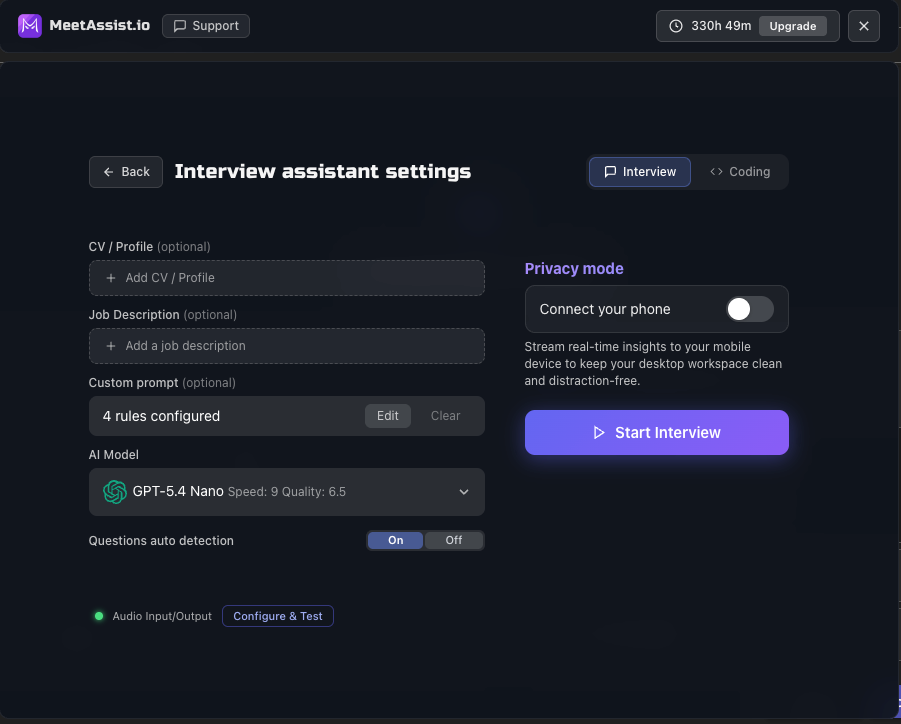
In MeetAssist settings, upload your CV in the "CV / Profile" field. After that, AI will build suggestions from your actual experience - not generic phrases. More on how this works in the next section.
Upload your resume once - it's saved for all future sessions
5 See personalized AI suggestions instantly
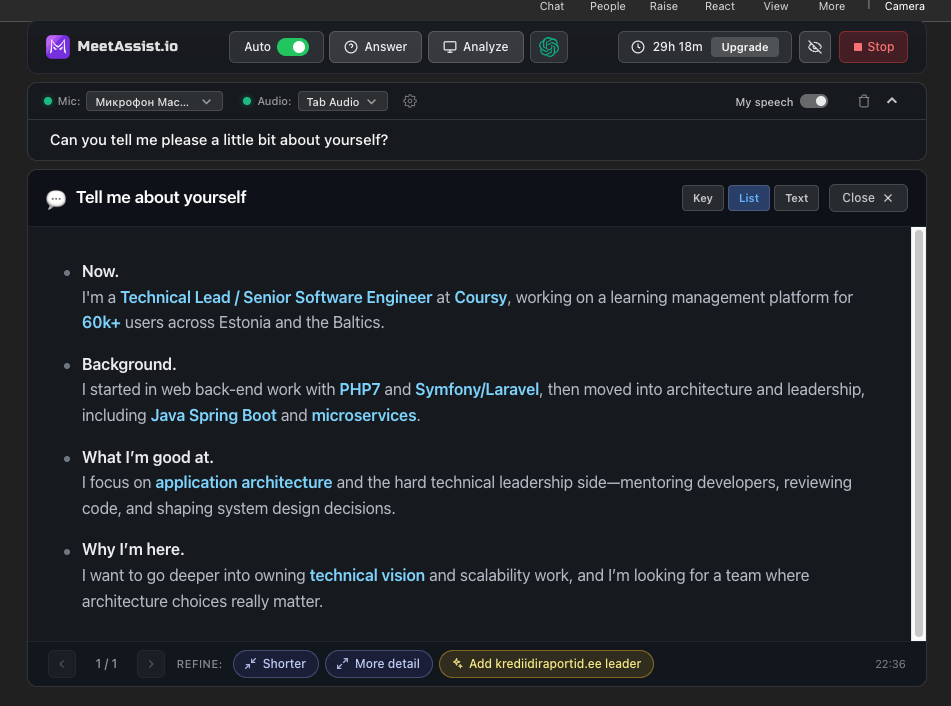
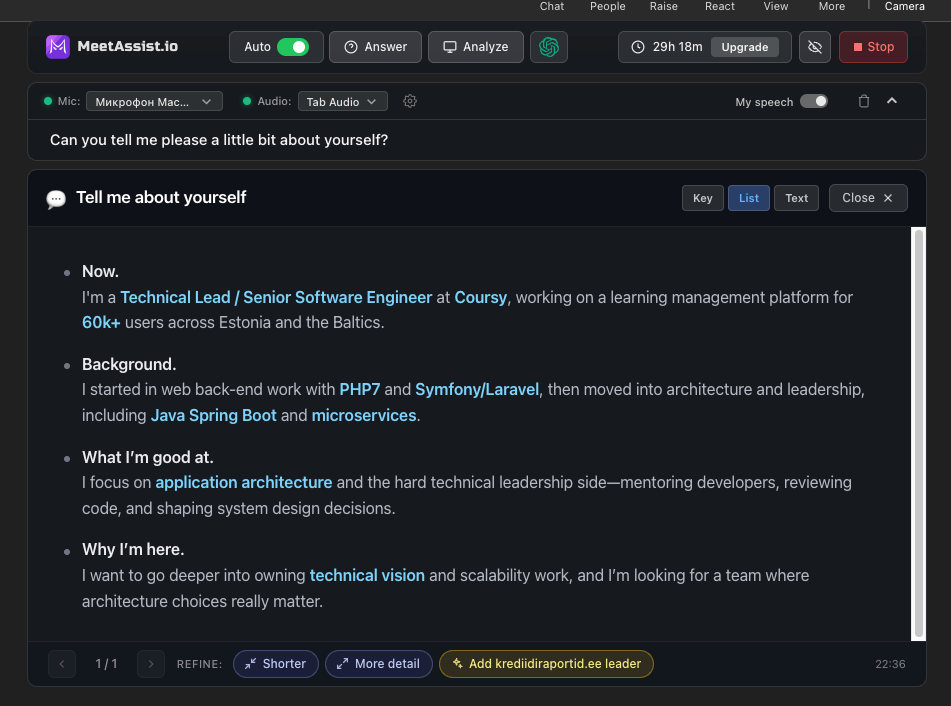
When the interviewer asks, MeetAssist quickly pulls up the question and surfaces a prompt in under a couple of seconds, drawing from your resume and referencing your real projects.
Personalized suggestions appear automatically for every question
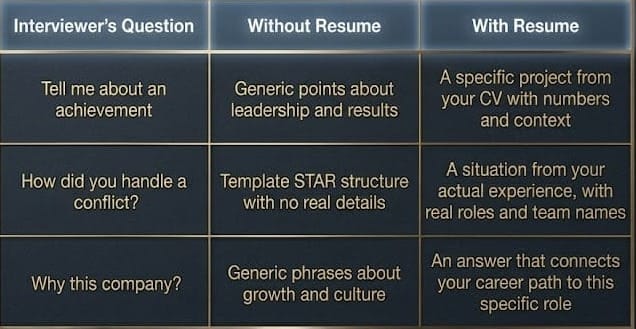
Resume + STAR: personalized answers from your experience
Behavioral questions in Teams interviews almost always expect a structured answer using the STAR method: Situation - Task - Action - Result. The problem is that under pressure it's hard to quickly recall the right example from your past and frame it correctly.
When you upload your resume to MeetAssist, AI gets your real story: which companies, which projects, which results. Instead of a generic answer to "Tell me about a challenging project," you get a suggestion built around your specific case.
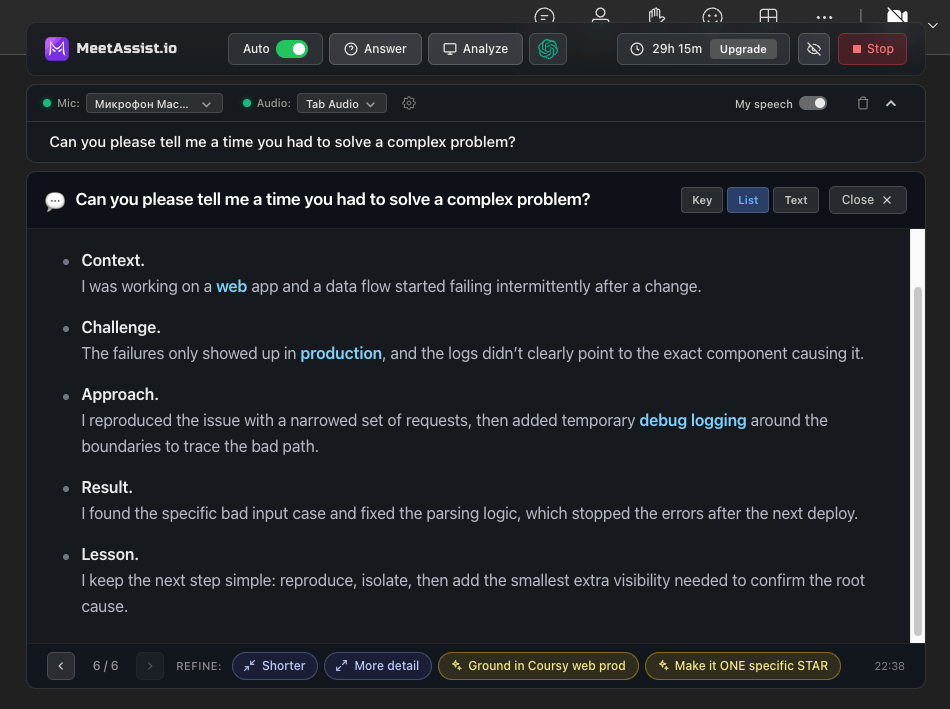
What it looks like in practice
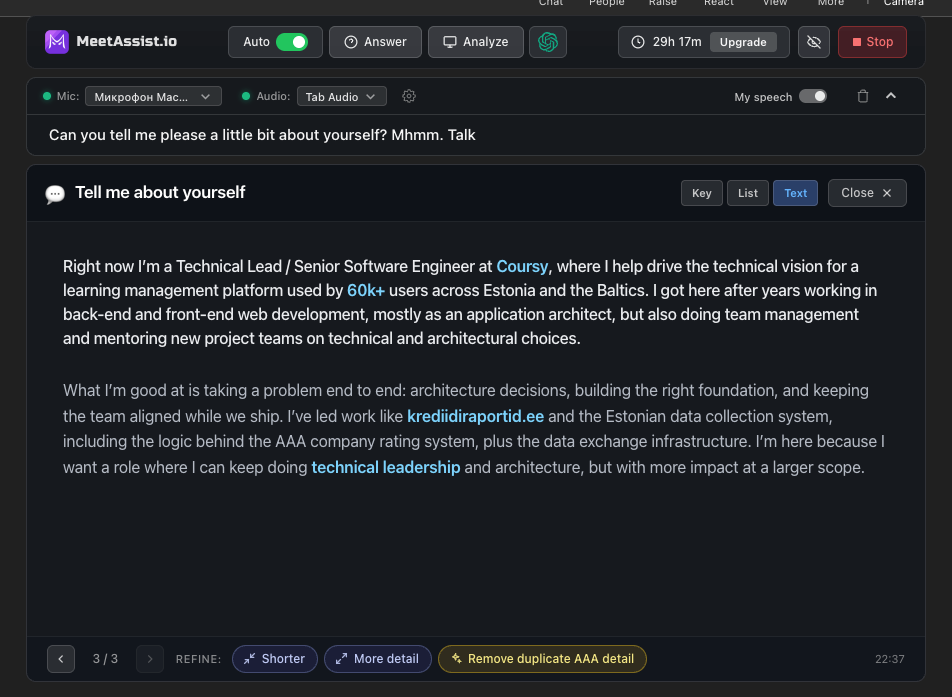
Tip: add an instruction to Custom Prompt like "For behavioral questions, use STAR structure: briefly - Situation and Task, in detail - Action and Result." Every suggestion will then come pre-formatted the way you need it.A suggestion with details from your resume - your real case, not a generic template
Answer formats: how to choose
MeetAssist shows suggestions in three formats. You can switch between them during the session using the Key / List / Text buttons - no need to restart.
How to choose the right format
Think about your confidence level going into the interview. Feeling prepared and just want to glance at a cue occasionally - go with Keywords. Ready but not 100% sure - With Details. Not confident at all and want maximum support -Full Sentences.
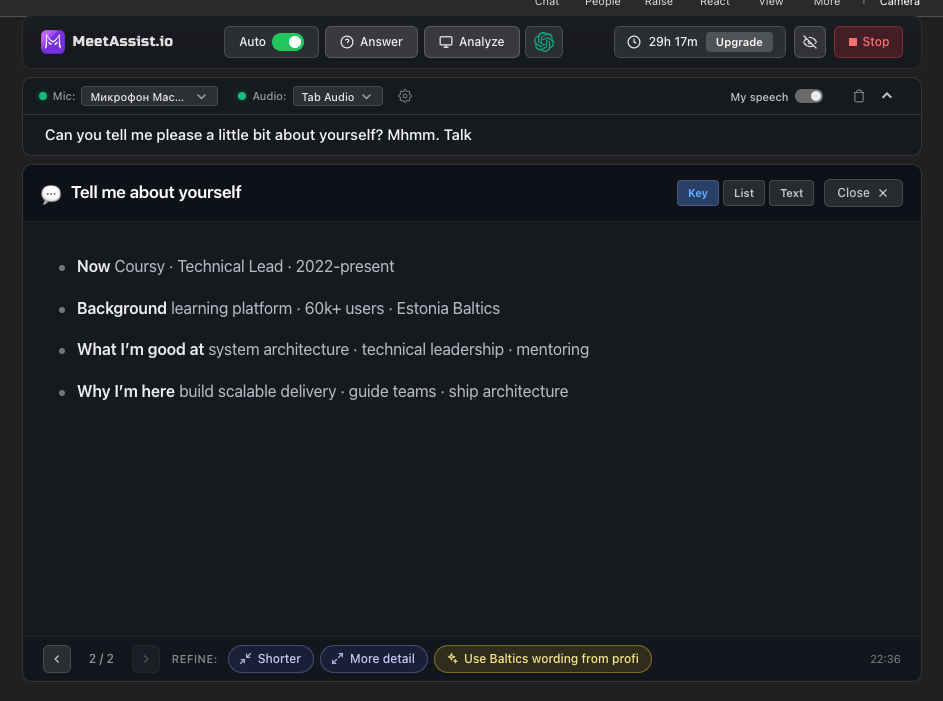
Keywords
Short 3-5 word cues: You glance at these, then piece the answer together in your head.
You're familiar with the subject and simply require a prompt.
You should keep your eye on the camera the whole time.
The interview moves fast with quick-fire questions
With Details
They all have a short explanation as well, including how to develop that thought, what to stress, etc., so it works well for most of the behavioral questions.
It’s a surprising question, and you will have to give it some thought.
STAR questions where narrative structure matters
Panel Interviews: Structured Hints will help you remember what to cover.
Full Sentences
It provides a fully formed, complete answer that is completely ready for reading. Use it verbatim or as a rough draft.
Interviewing in a foreign language
You feel pretty nervous, at least with a full text, you have something to rely on
A highly specialized question where precision matters
Our recommendation - With Details. It's the ideal middle ground: you get structured, contextual hints without filling your screen with a full script. This is the format we recommend to most users.
Panel interviews: when Teams has multiple interviewers
For a larger company, those later stages of hiring are panel interviews, where multiple interviewers like a manager, a technical lead, and HR will ask their own questions and jump to the next one quite rapidly.
MeetAssist listens to everything happening in the meeting and surfaces suggestions in response to all questions, regardless of who asked them. No manual action is required.
Tips for panel interviews
Use With Details format - when questions come fast from different people, structured hints help you keep up
Set your role in advance in the Target Position field - this helps AI understand the context of questions from different interviewers
Turn on Phone Mode - if you need to share your screen, suggestions will go to your phone and your computer screen will stay clean
FAQ
How does MeetAssist help with behavioral questions in Teams?
The extension hears the interviewer's question and generates a suggestion in real time. If you've uploaded your resume, AI builds the answer from your actual experience: real companies, projects, and achievements. Especially effective for STAR questions - "tell me about an achievement," "how did you handle a conflict," "describe a challenging project."
Does MeetAssist work in panel interviews with multiple interviewers?
Yes. MeetAssist hears everyone in the call and picks up questions from any interviewer. Suggestions appear automatically - no additional setup needed.
Do I need to upload my resume before every interview?
No, just once. Your CV is saved in your profile and used in all future sessions. When you update your resume - just upload the new version.
Why doesn't MeetAssist work in the Microsoft Teams desktop app?
MeetAssist is a Chrome browser extension. It captures audio from browser tabs only. You need to join Teams in Chrome: via the meeting link → "Continue on this browser", or directly at teams.microsoft.com.
Can the interviewer see that I'm using MeetAssist?
No. MeetAssist runs inside your browser and doesn't join the meeting as a participant. If you need to share your screen - turn on Phone Mode: suggestions will come to your phone and your computer screen will stay completely clean.


 MeetAssist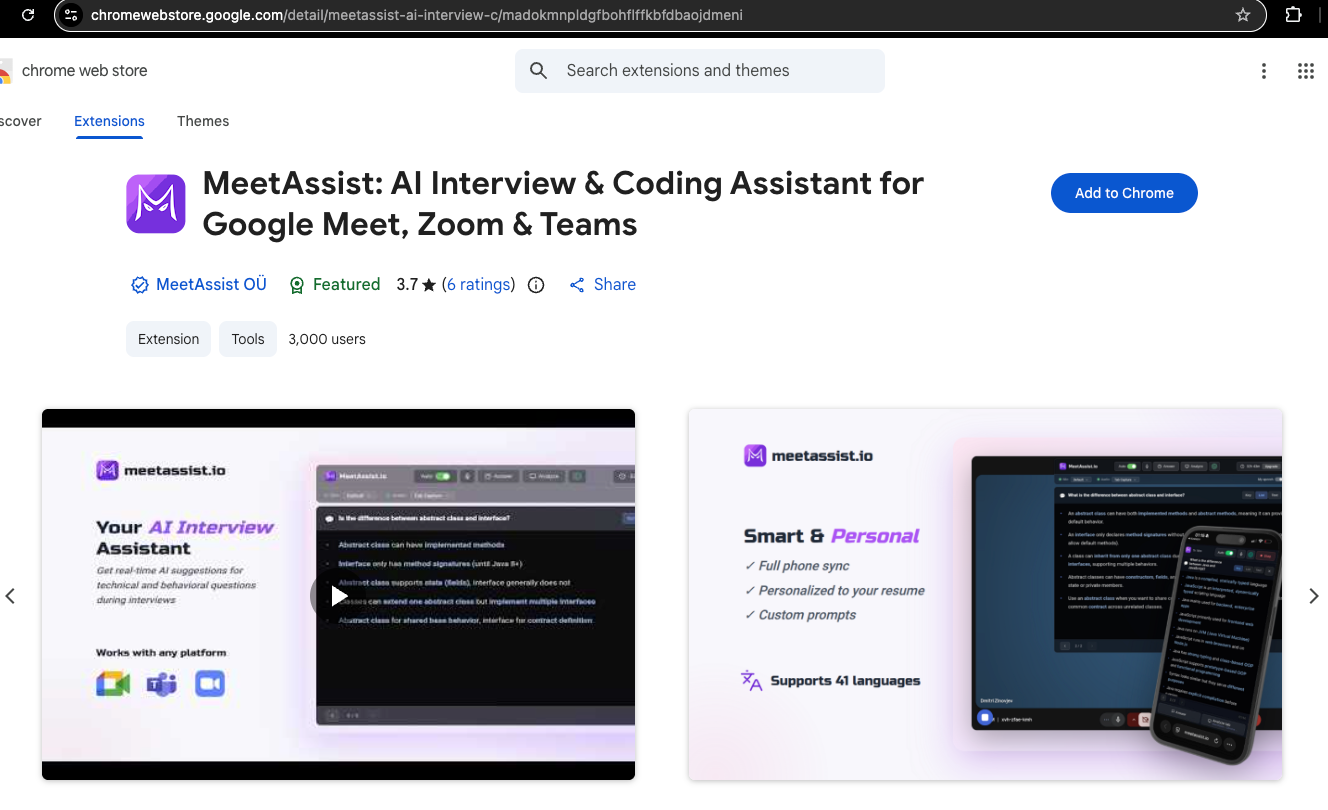
 Or add the Chrome extension