

The idea
After you sync, the extension disappears from your computer. Everything moves to your phone — live transcripts, AI-generated answers, and the ability to capture and analyze any Chrome tab. Your meeting screen stays 100% clean.
1Start MeetAssist on your computer
Open the MeetAssist extension in Chrome and press Start. You can be on any page — a meeting, a coding challenge, or anything else.
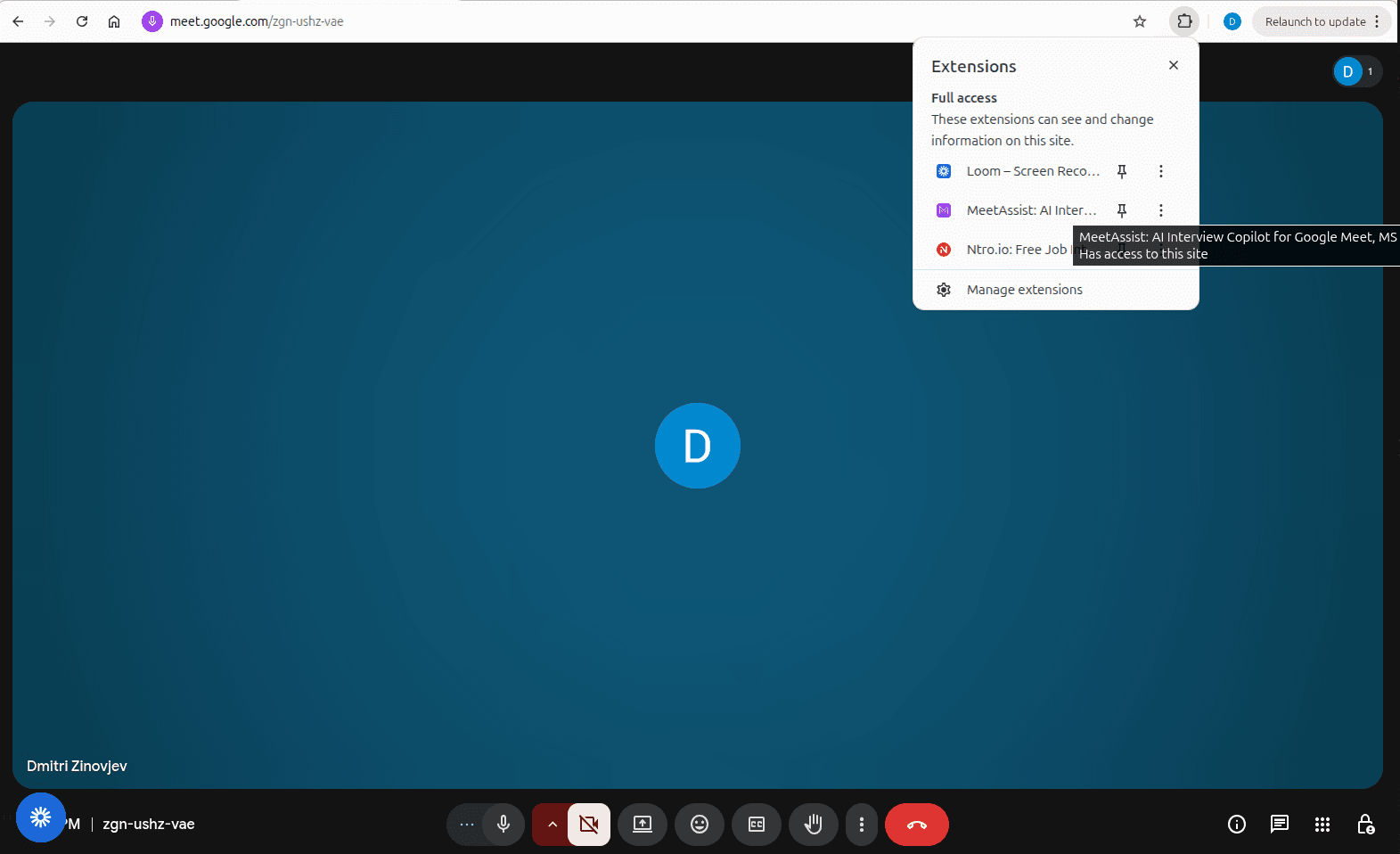
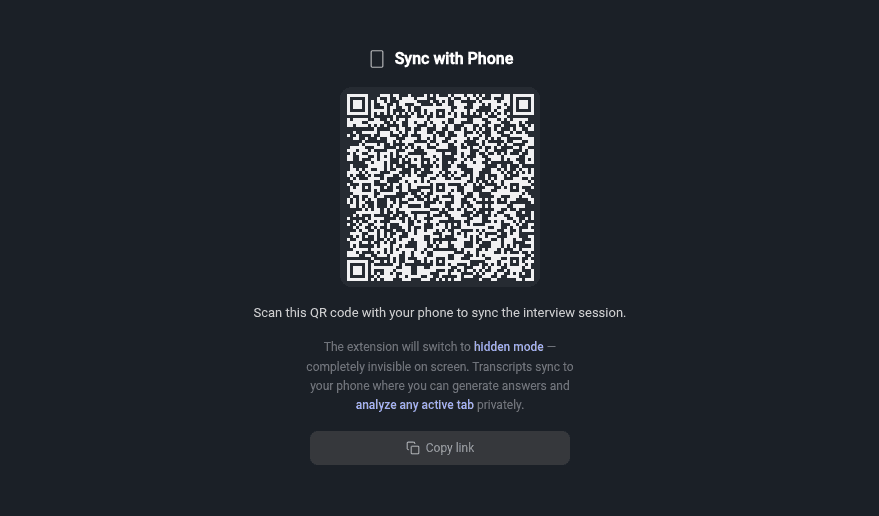
2Scan the QR code with your phone
Click Sync with Phone in the extension. A QR code appears — scan it with your phone's camera. The extension disappears from your screen and everything moves to your phone.
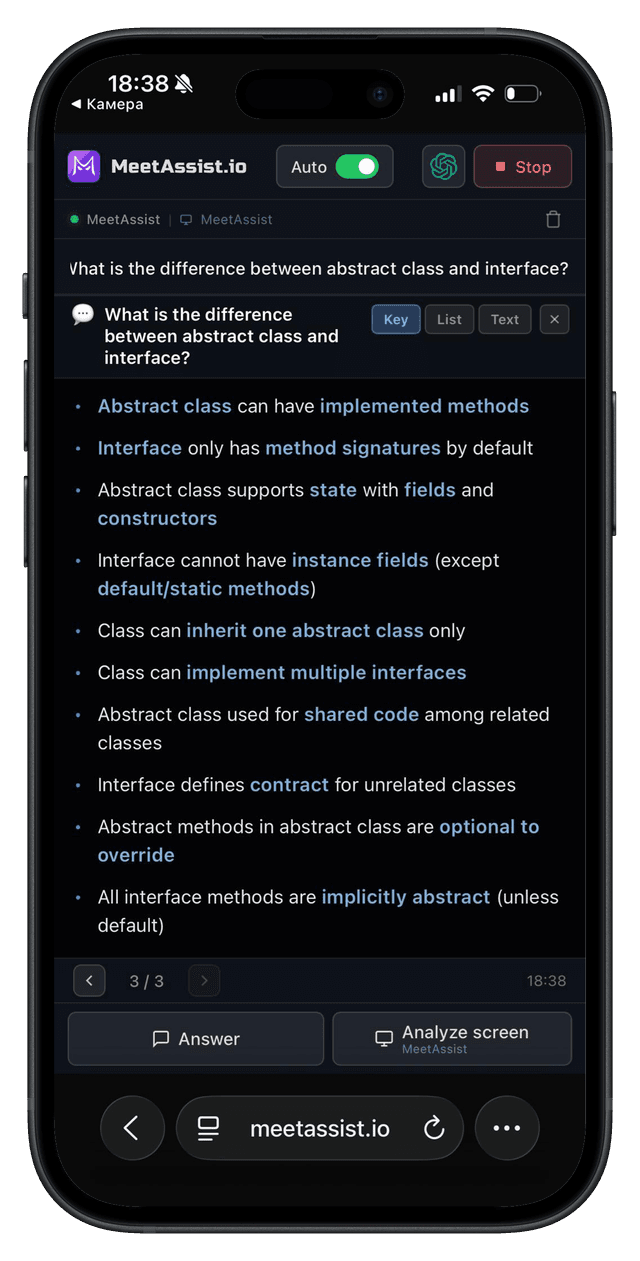
3Get live transcripts and AI suggestions on your phone
Your phone now shows real-time transcripts and AI answer suggestions as your meeting happens. Your computer screen stays completely clean — nothing is visible to anyone.
4Analyze any Chrome tab from your phone
Tap Analyze tab on your phone to capture whatever is currently on any Chrome tab on your computer. The AI reads the screen and generates a response — whether it's a coding challenge, a quiz, an assessment, or anything else.
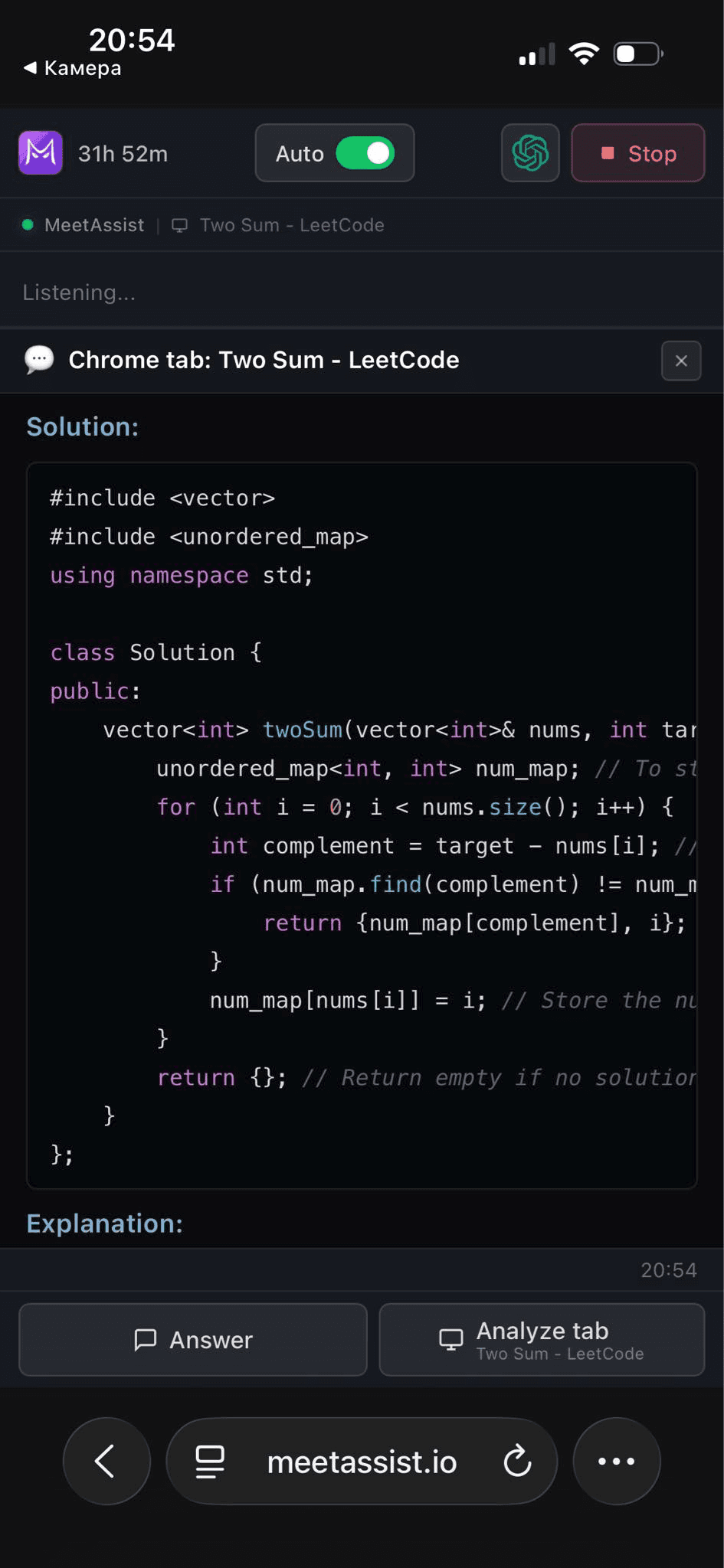
This works with any tab — even tabs where MeetAssist isn't open.
What you can analyze
Why use Phone Mode?
Invisible on your screen
After syncing, the extension disappears completely. Nothing is visible on your computer — safe for screen sharing and proctored sessions.
Analyze any tab remotely
Capture and analyze any Chrome tab from your phone — coding platforms, quizzes, assessments, or anything on screen.
Everything on your phone
Transcripts, AI suggestions, and screen analysis — all in one place on your phone. Your computer stays focused on the task.
FAQ
Do I need to install an app on my phone?
No. Phone Mode works through your mobile browser — just scan the QR code and it opens automatically.
Does it work with any meeting platform?
Yes. Phone Mode works with Google Meet, Zoom, Microsoft Teams, Webex, and any web-based meeting.
Can I analyze a tab that MeetAssist isn't running on?
Yes. The extension captures any active Chrome tab — it doesn't need to be open on that specific tab.
Will anything be visible on my computer screen?
No. Once you sync with your phone, the extension goes into hidden mode. Nothing is visible on your computer.
What kind of content can it analyze?
Anything visible on your screen — coding challenges, quizzes, assessments, documents, live code editors, or any other web content.
How fast do responses appear?
AI suggestions appear within seconds. Screen analysis with a full response typically takes 3-5 seconds.