AI Interview Assistant Screen Sharing: What macOS 15 Changed
macOS 15 changed how screen capture works, which makes many “invisible” desktop AI interview assistants less reliable during screen sharing. Here’s what candidates should know before a live interview.
AI interview assistant screen sharing became riskier on macOS 15+ because Apple’s newer screen capture system can expose windows that older “hide from capture” methods used to protect. If you use an AI interview assistant during live calls, the safest setup is no longer just “desktop overlay with stealth mode” — it is a second-screen or phone-first workflow that keeps guidance off the shared screen.
This article compares the tools and user reports from the provided Reddit threads, explains what macOS 15 changed, and shows why browser-background plus mobile display workflows, like MeetAssist Phone Mode, are becoming more practical for interview preparation and real-time support.
Key takeaways
It’s not clear yet that on macOS 15+, hiding a desktop window still works using ScreenCaptureKit; there used to be hacks to hide desktop windows in that context but those probably won’t work any more.
On Reddit, a few users noticed significant latency, with a 2-3s delay on InterviewMan, a 4-5s delay on Final Round AI, and even up to 6-8s delays with some Chrome extension tools.
On modern macOS systems, native “invisible overlays” on the desktop aren’t necessarily safe when you’re screen sharing.
You may have less screen-sharing exposure with a phone-first setup as well, since answers, transcripts, and task analysis can be viewed on a separate device.
Leverage AI support wisely: come prepared, organize your thoughts, and comprehend the response before voicing it.
What macOS 15 changed for AI interview assistant screen sharing
Most AI interview assistants use some kind of invisible overlay: the app shows up to the candidate but isn't supposed to be captured during screen sharing or screen recording. This breaks in macOS 15, which changed the underlying capture behavior.
In a Tauri GitHub issue, developers note that on macOS 15.x and later, Apple introduced changes to the window compositing and screen capture system. Traditional techniques such as Electron’s win.setContentProtection(true) or native macOS NSWindow.sharingType = .none may no longer work against Apple’s newer ScreenCaptureKit framework.
Simply put: A desktop app that previously wouldn't be captured by screenshot software is likely to now be captured by screen-sharing applications, depending on the app, platform, macOS version and capture method.
Why native desktop AI interview assistants are more exposed now
It may still be okay to use a native desktop assistant, however, you should be suspicious of phrases like “undetectable” or “invisible in all apps”. On MacOS 15+, the question is not whether your interviewer will notice your behavior. The OS will now be able to record windows older methods tried to keep off-record.
remote technical interviews in which you share your code editor, browser, development environment, or similar;
system design interviews where you juggle between diagrams, notes, and tabs;
screen recordings or proctored interview tools to be built on top of newer capture APIs.
One Reddit user in r/leetcode joked that InterviewCoder “claims to be invisible” but showed up in Task Manager. The same commenter said WhisprGPT was “decent” but weak under pressure, while Shadecoder felt more reliable because it did not require prompt switching or window switching. These are anecdotes, not lab tests — but they match the broader pattern: switching windows, visible processes, and shared-screen exposure are real operational risks.
Comparison: user-reported AI interview assistant screen sharing experiences
Reddit has a few tool names, plus some anecdotal evidence from users. Again: anecdotal, not verified benchmarks. This can be helpful because it can help you understand real-world interview performance. We’re talking about lag, screen sharing, pricing, crashes, and setup.
Tool
User-reported strengths
User-reported concerns
Pricing/details mentioned
MeetAssist
Reported 1–2 second answers; lightweight Chrome extension that runs in the background and can move the interface to a synced phone
Best used as preparation and communication support, not as a substitute for understanding
About 20 free minutes daily; Pro Pass is $9 one-time for about 180 minutes
InterviewMan
Reported 2–3 second answers, desktop overlay, “20+ stealth features,” no screenshare detection in the user’s tests
Still a desktop-style assistant, so macOS 15 screen capture changes are worth considering
Reported as $12/month annual or $30 monthly; another user said $12/month
Final Round AI
Known AI interview assistant category player
One user reported 4–5 second lag, which felt like “an eternity” in a live interview
Reported at $148/month
Sensei AI
Easy to find via Google, marketed as free by one user’s account
One user said the free version was effectively one session / 15-minute trial before paywall
Reported at $89/month after free session
Cluely
Recognized by users looking for free or low-cost AI interview help
One user claimed stealth required a paid add-on and referenced a breach involving 83k users
Reported as $20/month plus $75 stealth add-on, totaling $95/month
Chrome-extension assistants
Convenient because they run in the browser
One user reported crashes, tab visibility during screen share, and 6–8 second answer delays
Varies by extension
InterviewCoder
Claims invisibility, according to one Reddit commenter
Commenter said it appeared in Task Manager and was flagged after tab switching
Not specified
WhisprGPT
Described as “decent” by one commenter
Reported to give weaker or incomplete help under pressure
Not specified
Shadecoder
One commenter called it impressive because it did not require switching windows and could follow screen/audio context
Still should be tested carefully before a high-stakes interview
Not specified
Why MeetAssist uses a phone-first workflow for screen sharing
MeetAssist is a lightweight Chrome extension that can analyze the transcript in real-time, identify interviewer questions, and provide tailored feedback based on your resume, skills, job position, job description and custom prompts.
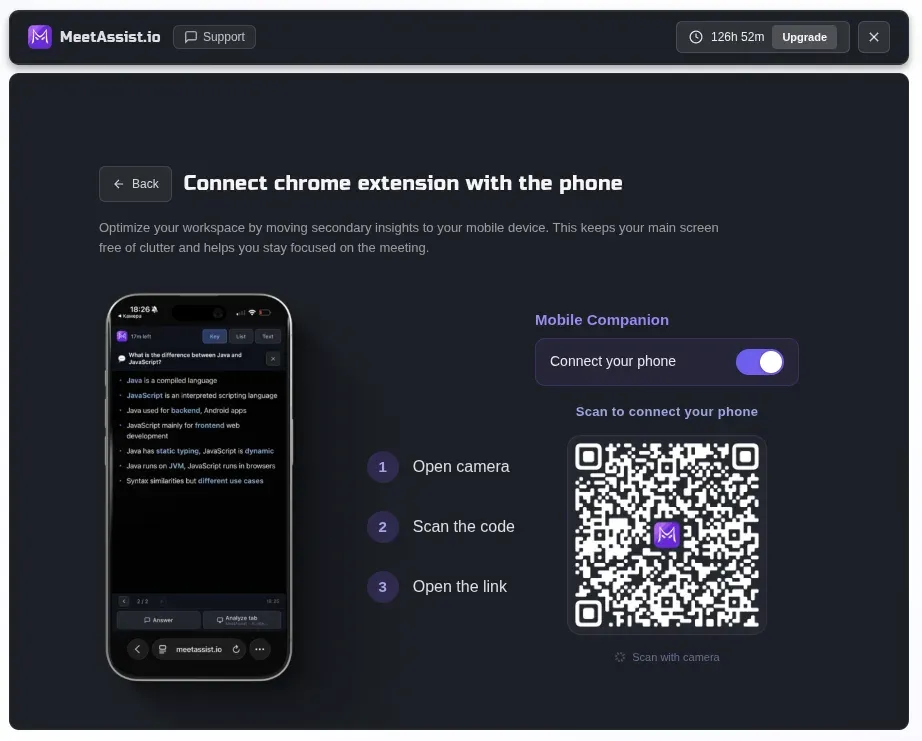
A feature that can be very valuable is the ability to connect a phone via Phone Mode. You connect the browser extension to your phone via QR code, and the interface sits on your phone, while your PC is busy with the call or the coding platform in the background.
MeetAssist: connecting phone to the extension
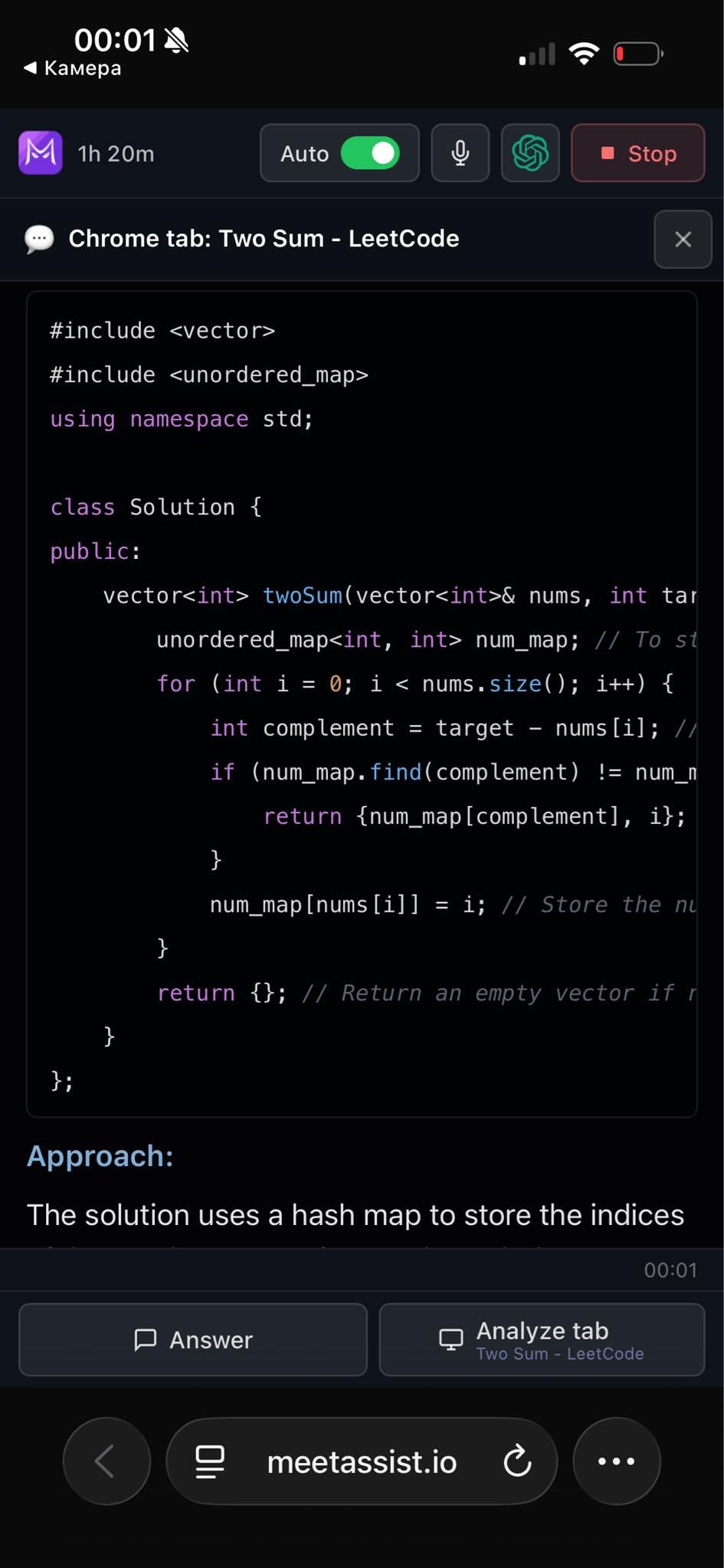
From your phone, you’ll see your live transcript, detected questions, suggested responses, message history, coding-task analysis, and settings. This means that when you screen share, you don’t have to clutter your desktop with a visible AI agent overlay; instead the AI agent’s guidance is available for reference on your phone.
Screenshots from the browser workflow are supported, and task analysis results can be sent over to the phone. For coding interviews, this enables you to refer to the problem statement, requirements, algorithm idea, time complexity, space complexity, and implementation approach in a secondary window, all while the shared screen can be solely about the coding.
Safer setup checklist before a live interview
1. Test your exact interview setup
Don’t assume your assistant acts the same way on every platform, including Zoom, Google Meet, Microsoft Teams, Webex, CoderPad, HackerRank, or CodeSignal, because it probably won’t. Set up a test with a friend using an identical browser and screen-sharing configuration on the same operating system.
2. Avoid full desktop overlays on macOS 15+
If your tool relies on native desktop invisibility, tread carefully: macOS 15’s ScreenCaptureKit changes could render existing content protection insufficient.
3. Prefer a second-screen workflow
Use your mobile device, or a separate device, to minimize the chances of AI suggestions showing up in the shared viewing area of your screen. MeetAssist Phone Mode was built for this exact purpose: the extension runs in the background, while your answers and transcripts are synced to your mobile device.
4. Keep answers natural
This same suggestion was voiced by a few other users on Reddit: Don’t read AI-generated material word-by-word. Use bullet points or key phrases to get yourself going again, then write your answer in your own words.
5. Understand before you speak
For coding interviews, though, you'll still have to walk them through what are the tradeoffs of different data structures, you'll need to consider edge cases, time and space complexity. If you're asked why are you using this data structure and if you cannot defend it, they'll know you are hiding the ball even if they never saw you use it in the program.
Frequently asked questions
Are AI interview assistants visible during screen sharing on macOS 15?
It's true. macOS 15 introduced screen capture changes, and they could be exposing windows older hiding methods used to protect that you're probably already using to try to hide your screens. If you're going to be in a live interview, then native desktop overlays are definitely something to check.
Is a browser extension safer than a desktop overlay?
Well, it really depends on how it's being used. Normally, if you're simply sharing one tab within your browser, that's the tab that will be visible during a sharing session. But if your assistant pairs a phone-first setup like MeetAssist Phone Mode, which has both a background browser extension paired with a phone app, then we don't need to display its interface.
Can MeetAssist help with coding interviews?
Absolutely. It breaks down a coding problem, describes what is required, proposes an efficient algorithm, computes time and space complexity, and helps with the implementation. It analyzes coding tasks on popular platforms like LeetCode, HackerRank, CodeSignal, CoderPad, HackerEarth, HireVue, and browser IDEs.
What is the responsible way to use an AI interview assistant?
This is a helpful tool for preparing, staying calm, organizing your thoughts, and conveying your thoughts in the right way. It works best if you know the subject matter and you use the AI-generated answers for their structure only and not to read from.
If screen sharing is part of your next technical interview, test your setup early. And if you want real-time transcript, question detection, personalized answer formats, coding task support, and a phone-first workflow, try MeetAssist before the interview — not five minutes after it starts.


 MeetAssist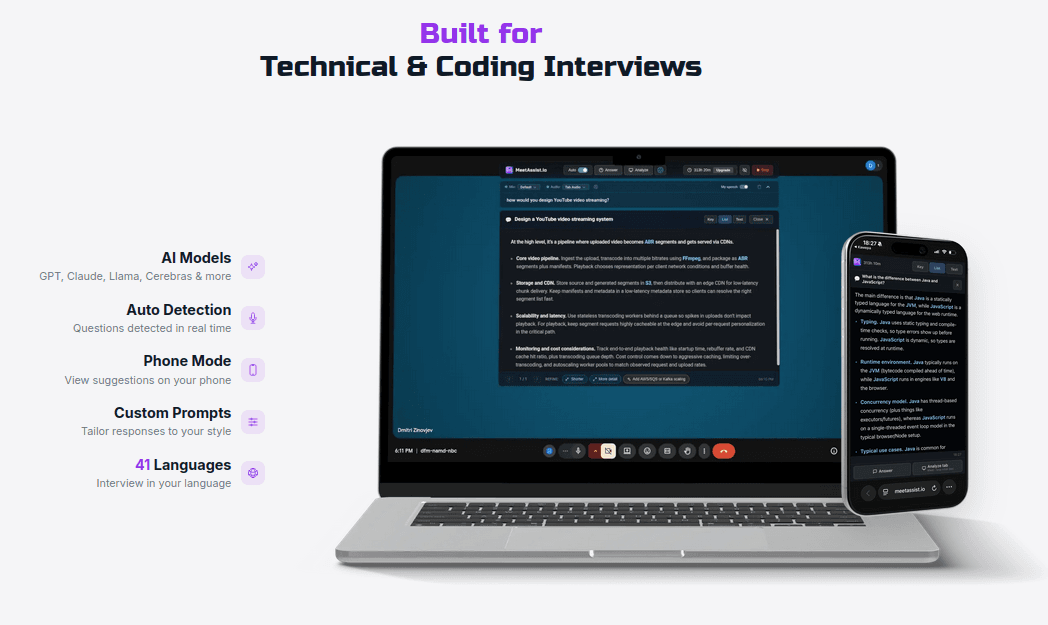
 Or add the Chrome extension