

Facing a remote coding or behavioral interview guide can feel like a high-stakes chess match where every second counts. The pressure to impress companies such as Google, Microsoft, and British startups pushes even seasoned developers to seek smarter ways to prepare. Setting up real-time AI-powered interview support ensures you get tailored practice and actionable feedback for every question, helping you stay confident and focused when it matters most.
Table of Contents
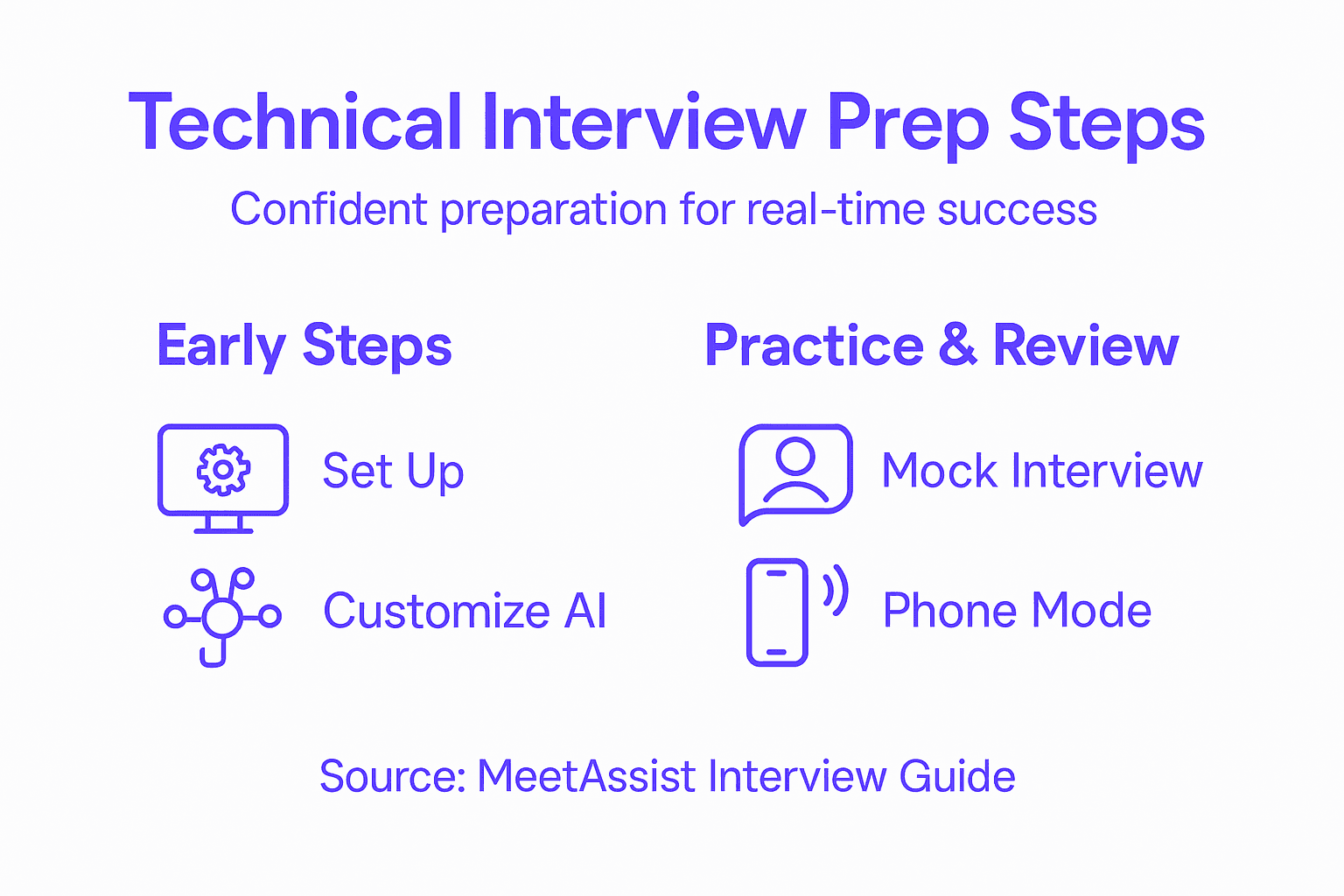
- Step 1: Set Up MeetAssist for Seamless AI Support
- Step 2: Customize Your AI Models and Personalization Settings
- Step 3: Practice Real-Time Interview Scenarios Effectively
- Step 4: Verify and Refine Your Answers Using Phone Mode
Quick Summary
| Key Point | Explanation |
|---|---|
| 1. Easy Setup for MeetAssist | Install the Chrome extension in minutes to access AI support for technical interviews. It requires no complex configuration. |
| 2. Customize AI and Settings | Tailor the AI model and answer style to your preferences, ensuring suggestions align with your background and the job’s requirements. |
| 3. Practice with Real-Time Scenarios | Conduct mock interviews using MeetAssist to simulate real conditions, helping you refine your responses and build confidence before actual interviews. |
| 4. Utilize Phone Mode for Discretion | Use Phone Mode to display AI suggestions on your phone, allowing for discreet review without distracting your interviewer during the call. |
| 5. Reflect and Improve After Practice | After practice sessions, evaluate AI suggestions and your answers to identify areas needing improvement and adjust settings accordingly. |
Step 1: Set Up MeetAssist for Seamless AI Support
Setting up MeetAssist’s real-time AI assistance takes just a few minutes and unlocks powerful support during your technical interviews. You’ll have intelligent answer suggestions at your fingertips without any complicated configuration.
Start by installing the Chrome extension from the official store. Open your browser, navigate to the Chrome Web Store, and search for MeetAssist. Click the Add to Chrome button and confirm the installation when prompted. The extension integrates seamlessly with Google Meet, Microsoft Teams, Zoom, and Webex, so you’re covered regardless of your interview platform.
Once installed, open the extension icon in your browser toolbar to access the setup wizard. You’ll see a clean dashboard with straightforward options:
- Connect your Google account or email to authenticate
- Upload your resume (this personalizes AI suggestions to match your background)
- Select your preferred AI model (GPT-4, Claude, or Gemini)
- Choose your answer style: concise, detailed, STAR method, or bullet points
The beauty here is that no audio or video is recorded by MeetAssist, only text transcripts are processed with encrypted connections. Your privacy stays intact while you get real-time support.
When you join your next interview, simply activate the extension by clicking its icon before the call starts. The AI will begin transcribing questions live and generating answer suggestions on your phone or device. If you’re using Phone Mode, scan the QR code to move all suggestions to your phone screen, keeping your computer screen completely clean and distraction-free.
Test the setup with a practice call before your actual interview. Invite a friend to a video meeting, activate MeetAssist, and see how the suggestions appear in real time. This gives you confidence in the system and helps you understand how to read and act on suggestions quickly.
The setup takes under five minutes, but familiarity with how suggestions appear saves precious seconds during your actual interview.
Pro tip: Upload a tailored resume highlighting skills relevant to your target role before each interview type—technical, behavioral, or coding—to receive more customized and accurate AI suggestions that match what the interviewer expects to hear.
Step 2: Customize Your AI Models and Personalization Settings
Customizing your AI models and personalization settings transforms MeetAssist from a generic tool into your personal interview coach. Tailoring these settings to your specific role and background dramatically improves the relevance and accuracy of suggestions you receive during interviews.
Start by selecting your preferred AI model. MeetAssist offers three powerful options: GPT-4, Claude, and Gemini. Each model has distinct strengths—GPT-4 excels at detailed technical explanations, Claude shines in conversational clarity, and Gemini offers balanced performance across question types. Test each one briefly to see which feels most natural to your thinking style.

Here’s a quick comparison of the three AI models available in MeetAssist:
| AI Model | Strengths | Best Use Case |
|---|---|---|
| GPT-4 | In-depth technical explanations | Complex coding and technical interviews |
| Claude | Conversational clarity | Behavioral and situational interviews |
| Gemini | Balanced answers | Mixed question formats |
Next, configure your answer style preferences. You have four choices:
- Concise: Short, punchy answers ideal for fast-paced interviews
- Detailed: Comprehensive responses for in-depth technical discussions
- STAR method: Structured answers perfect for behavioral questions
- Bullet points: Quick reference format for coding challenges
The real power comes from personalizing your AI settings with role-specific data. Open your profile settings and input detailed information about your target position. Add the job description, highlight required skills, and note specific technologies or frameworks mentioned in the posting.
Upload company research notes if you have them. Let MeetAssist know the company’s industry, size, and any cultural details you’ve learned. This context helps the AI generate suggestions aligned with what interviewers actually expect to hear from candidates in that organization.
Build your skill profile by listing technologies, languages, and methodologies you’re comfortable discussing. Customized AI assistance adapts responses based on your background, ensuring suggestions match your actual experience level rather than generic advice.
Add your resume to the system so MeetAssist can reference your background when generating suggestions. The AI will pull relevant projects and experiences to support your answers naturally, making responses feel authentic rather than rehearsed.
Finally, set your interview type preference. Are you preparing for a technical coding interview preparation, behavioral questions, system design, or a mix? Select which applies so the AI prioritizes relevant question patterns and answer frameworks.
Spending 10 minutes on personalization settings now saves you from hearing irrelevant suggestions during your actual interview.
Pro tip: Before each interview, quickly update your target role and company notes in settings—even small details like the team name or tech stack changes how AI suggestions align with interviewer expectations.
Step 3: Practice Real-Time Interview Scenarios Effectively
Practicing with real-time scenarios is where theory meets reality. This step transforms your preparation from passive learning into active simulation, building muscle memory for thinking on your feet while AI suggestions appear in real time.
Start by scheduling dedicated practice sessions. Block 30 to 60 minutes for each session and choose a quiet environment that mirrors your actual interview setting. If you’ll interview from home, practice from home. If you’ll be in an office, recreate that setup. Environmental consistency builds confidence.
Begin with lower-stakes scenarios before progressing to harder questions. Your practice progression should follow this flow:
- Start with common warm-up questions (tell me about yourself, why this role)
- Move to role-specific technical or behavioral questions
- Progress to challenging edge cases or situational problems
- End with rapid-fire mixed question rounds
Invite a friend or colleague to conduct mock interviews. They don’t need technical expertise—just the ability to read questions from a list and listen to your responses. Having another person asking questions creates psychological realism that self-directed practice cannot match.
Activate MeetAssist during each practice session and pay attention to how suggestions appear. Note the timing of AI responses, the answer styles you prefer, and which suggestions resonate versus which feel off-brand. When practicing with AI assistance for coding challenges, treat the suggestions as starting points rather than final answers—refine them to match your communication style.
Record yourself during practice runs if possible. Watching playback reveals nervous habits, pacing issues, and moments where you pause too long. These patterns become obvious on video and you can actively correct them before your real interview.
Time your responses. Most technical interviews allocate 15 to 20 minutes per question including discussion. Practice staying within these windows so you don’t run long or finish too quickly. MeetAssist suggestions help you stay focused, but pacing discipline comes from repetition.
After each session, reflect on what worked and what didn’t. Did certain AI models or answer styles feel more natural? Were there question types that stumped you? Document these observations and adjust your settings accordingly for the next round.
Real-time practice with AI support reveals gaps that theory alone cannot surface—your actual weak points become visible only when you hear your own responses.
Pro tip: Practice the same three tough questions across multiple sessions using different AI models and answer styles to build flexibility; interviewers appreciate candidates who can explain concepts in multiple ways.
Step 4: Verify and Refine Your Answers Using Phone Mode
Phone Mode transforms how you interact with MeetAssist by moving all AI suggestions to your phone screen, keeping your computer completely clean. This separation lets you verify answers and refine responses without visible distractions during the actual interview.
Activate Phone Mode by opening MeetAssist and selecting the Phone Mode option from your settings. The extension will display a QR code on your screen. Scan it with your phone using any QR code reader or the camera app. Once connected, your phone becomes your AI command center.
Your phone will now display real-time transcripts and AI suggestions as your interviewer speaks. You can read suggestions privately without turning your head away from the camera or glancing at another screen. Setting up an appropriate interview environment means positioning your phone where you can see it without appearing distracted.
Review suggestions on your phone before responding. Take 3 to 5 seconds to scan the AI output and decide which elements to incorporate. You don’t need to use every suggestion—pick the strongest points and weave them into your natural speaking style. This verification step prevents you from sounding robotic or rehearsed.
As you refine your response, consider these elements:
- Does the suggestion match your actual experience or expertise?
- Can you explain it confidently without sounding uncertain?
- Does it answer the question directly or add unnecessary detail?
- How would you naturally phrase this in conversation?
Your phone becomes a note-taking device too. Use it to jot down follow-up points the interviewer mentions or questions you want to ask later. This keeps your mental bandwidth focused on thoughtful responses rather than remembering details.
Phone Mode also lets you capture and analyze any Chrome tab from your phone. If you’re taking a coding assessment or technical quiz, snap a screenshot and MeetAssist analyzes it, providing relevant suggestions without needing the extension on that specific tab.
After your interview, review your phone’s transcript to see what questions you were asked and how AI suggestions appeared. Compare your actual answers to what you could have said better. This reflection builds confidence for your next interview.
The following table summarizes how Phone Mode elevates your interview process:
| Benefit | How It Helps | Interview Advantage |
|---|---|---|
| Distraction-Free | Keeps computer screen clean | Appears more focused to interviewer |
| Private Suggestions | View AI help on your phone | Use support discreetly |
| Flexible Interaction | Capture and analyze browser tabs | Adapt instantly to question changes |
| Efficient Review | Access transcripts after interview | Identify areas to improve quickly |
Phone Mode solves the biggest problem with AI assistance during interviews: how to use help invisibly without appearing unprepared or distracted.
Pro tip: During practice sessions, deliberately test your phone positioning and comfortable viewing angles so you can glance at suggestions in under two seconds without awkward head movements.
Elevate Your Technical Interview Confidence with Real-Time AI Support
Preparing for technical interviews can feel overwhelming when you face tough questions and the pressure to respond quickly. This article highlights common challenges like staying focused, customizing answers to fit your experience, and managing distractions during live sessions. MeetAssist addresses these pain points by offering real-time AI assistance that listens to your interview, transcribes questions instantly, and generates tailored answer suggestions based on your uploaded resume and preferred AI model. With features like Phone Mode, you can access discreet, privacy-protected support right on your phone without showing anything on your computer screen.
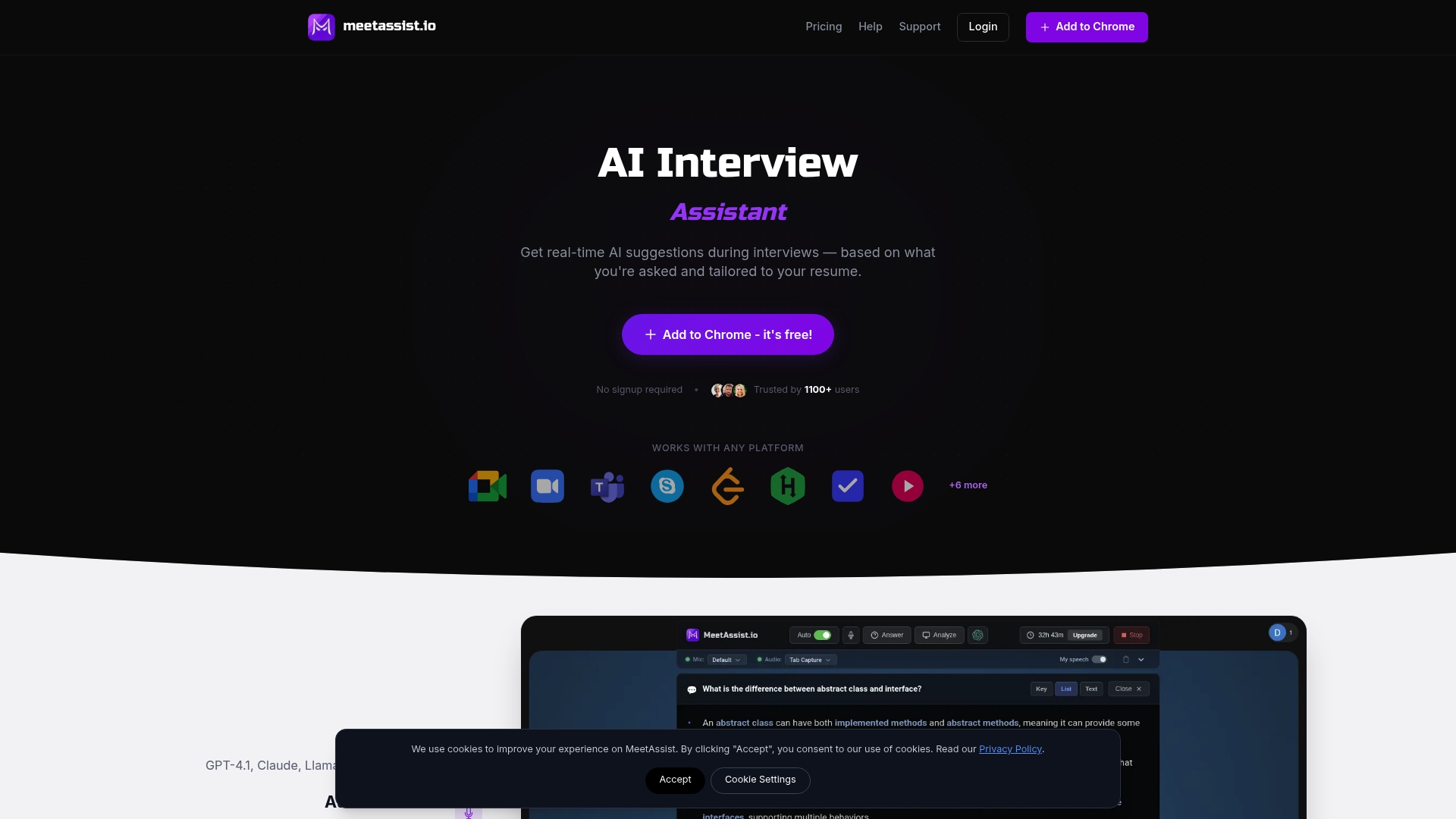
Take control of your interview preparation guides now by integrating MeetAssist’s advanced features into your routine. Practice confidently knowing your AI coach adapts to your unique background and interview style, helping you deliver polished, authentic answers every time. Visit MeetAssist to install the Chrome extension and start customizing your settings today. Don’t let nerves or distractions hold you back—embrace the future of interview readiness with MeetAssist’s real-time AI assistance and turn uncertainty into success.
Frequently Asked Questions
What is the first step in confident interview preparation for technical success?
To start preparing confidently, install the MeetAssist Chrome extension for real-time AI support during your interviews. This process typically takes under five minutes and allows you to personalize your AI assistance to match your specific interview needs.
How do I customize my AI model and settings for interview preparation?
Select your preferred AI model based on your strengths and preferred response style to tailor MeetAssist to your unique requirements. Spend about ten minutes configuring your settings before each interview to enhance the relevance of the AI suggestions you receive.
What types of questions should I practice during technical interview preparation?
Practice a range of questions, starting with common warm-up inquiries and advancing to role-specific technical or behavioral questions. Include rapid-fire mixed question rounds to simulate the pacing and pressure of actual interviews and ensure you are thoroughly prepared.
How can I effectively use Phone Mode during my interviews?
Activate Phone Mode to view AI suggestions discreetly on your phone, keeping your computer screen distraction-free. This setup allows you to focus on the interviewer while verifying answers on your phone, enhancing your engagement and response quality.
Why is it important to review and reflect on my interview practice sessions?
Reviewing your practice sessions helps you identify gaps in your responses and areas for improvement. Take the time to analyze how well you responded to questions and adjust your preparation strategy based on the insights you gain.